Introduction
Windows 365 promises a simple idea: a consistent, secure Windows experience delivered from the cloud, accessible from almost anywhere.
In practice, the quality of that experience varies more than many organisations expect. Performance, authentication behaviour, device redirection, and even effective security posture can change significantly depending on the endpoint used to access the Cloud PC.
Over the past few months, I have been spending a significant amount of time working from Windows 365 across multiple endpoints, not as a lab exercise, but as a genuine day-to-day working pattern. Same Cloud PC, same identity, same Conditional Access intent, different devices.
For organisations embracing hybrid work, Zero Trust, and cloud-first strategies, the appeal of Windows 365 is obvious. Users can work securely from home, the office, or on the move, while IT teams retain centralised control over security, compliance, and data protection.
But while the Cloud PC itself may live in Microsoft’s cloud, the endpoint device still matters more than many organisations realise.
The local device continues to shape the overall experience from authentication methods and peripheral redirection to media handling, privileged access workflows, and phishing-resistant authentication support. Depending on the endpoint used, the operational experience can differ substantially.
This post brings together those observations into a practical, enterprise-focused view of how Windows 365 behaves across different devices, and why those differences matter when designing a secure Windows 365 strategy.
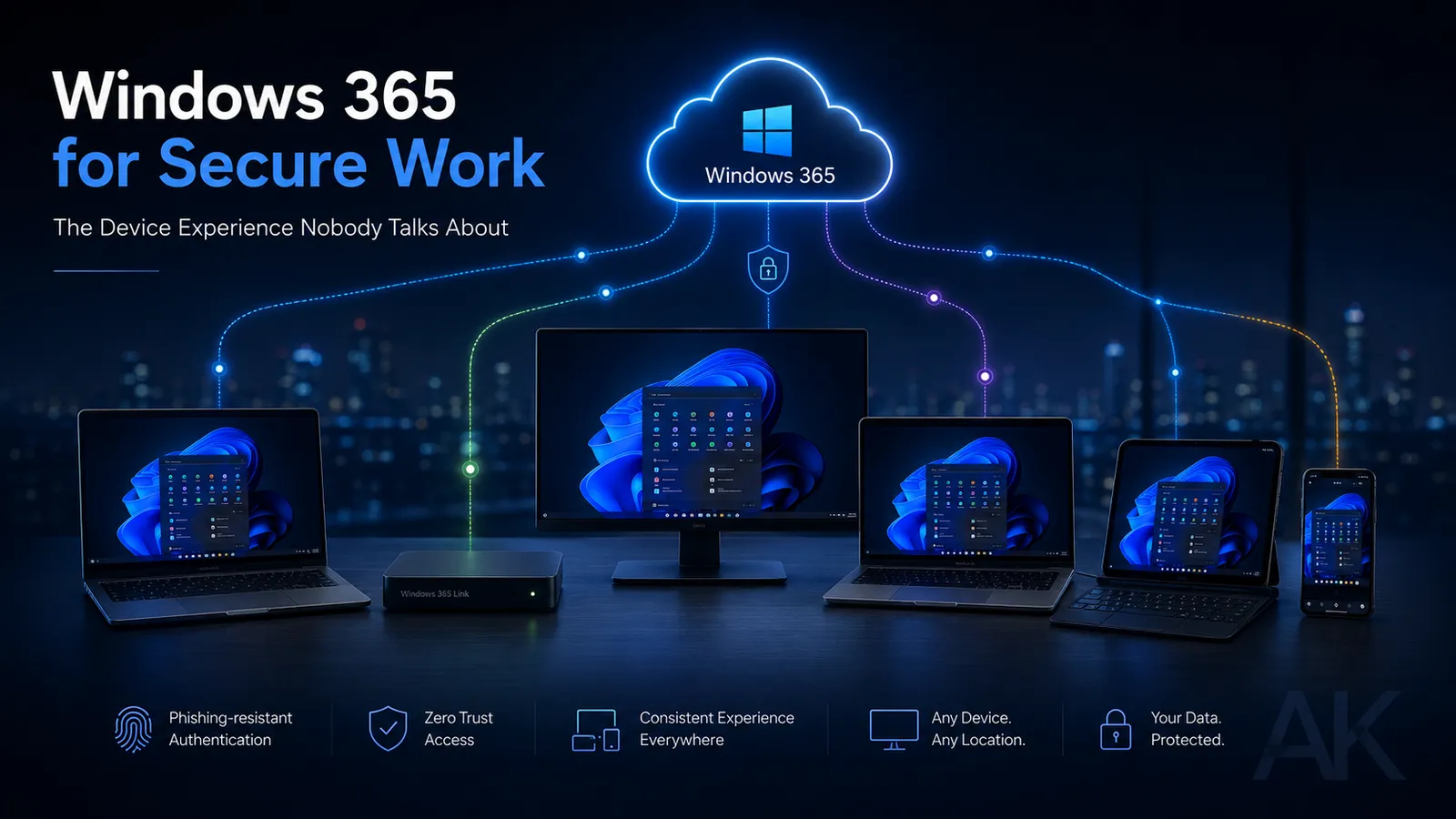
Specifically, I tested access to the same Windows 365 Cloud PC from:
- Native Windows 11 device
- Windows 365 Boot
- Windows 365 Link
- macOS
- iPad with keyboard, mouse, and external display
- iPhone
- 3rdParty Thin Client device 10ZiG
The results were genuinely interesting particularly around authentication behaviour, media handling, device redirection, and privileged access scenarios.
In several cases, the limitations were significant enough that they could directly influence privileged access design decisions, endpoint strategy, and Zero Trust architecture.
Why the Endpoint Still Matters
One of the most common assumptions about Cloud PCs is that the endpoint no longer matters. That assumption is wrong.
While Windows 365 removes applications and data from the local device, the endpoint still heavily influences:
- Authentication behaviour and MFA options
- Passkey and WebAuthn support
- Device trust and compliance signals
- Audio, video, and peripheral redirection
- Browser behaviour and media handling
- The usability of privileged access workflows
In a Zero Trust model, trust is evaluated continuously based on identity, device health, authentication strength, and session context.
Two users accessing the identical Cloud PC’s from different endpoints can therefore end up with materially different security characteristics, even if policy configuration appears identical on paper.
This is particularly important when considering phishing-resistant authentication, privileged access separation, and administrative workflows.
A device that works perfectly well for standard productivity may introduce operational or security limitations for privileged administration.
This is why endpoint choice should be treated as a first-class architectural decision not simply a convenience choice left to rollout.
What Was Tested
To understand these differences clearly, I tested access to the same Windows 365 Cloud PC from the following endpoints:
- Native Windows 11 device
- Windows 365 Boot
- Windows 365 Link
- macOS
- iPad with keyboard, mouse, and external display
- iPhone
- 10ZiG Third part OS on a Micro PC
The goal was not to benchmark raw performance, but to assess real-world usability and security characteristics across:
- Productivity workloads
- Media and collaboration usage
- Authentication workflows
- Device redirection behaviour
- Privileged access scenarios
All testing was performed against the same Cloud PC using the same identity and security controls, allowing the comparison to focus entirely on endpoint behaviour and operational experience.
Native Windows – A Familiar Experience with a Different Entry Point
Windows 365 Without Changing the Traditional Windows Workflow
Accessing Windows 365 from a native Windows 11 device feels immediately familiar because, operationally, very little changes for the user.
The local endpoint remains the primary desktop experience, with the Cloud PC effectively acting as an extension of the existing Windows workflow rather than replacing it entirely.
Users still:
- Sign into the local device first
- Launch the Cloud PC session afterwards
- Continue interacting with a traditional Windows desktop environment underneath
For many organisations, this makes native Windows endpoints the most natural starting point for Windows 365 adoption.
Strong Compatibility Across Security and Usability
Because both the endpoint and the Cloud PC share the same Windows platform, compatibility across authentication, device redirection, and media handling is generally excellent.
In practice, this means:
- Full system audio behaves as expected
- Browser and media experiences feel natural
- USB and peripheral compatibility is broad
- Authentication workflows integrate cleanly
- Multi-monitor support is seamless
- FIDO2 and passkey support work reliably
From both a usability and security perspective, native Windows provides one of the most frictionless Windows 365 access experiences available.
However, while the experience is strong, the local endpoint still remains the primary operating environment.
That is where Windows 365 Boot begins to fundamentally change the model.
Windows 365 Boot – The Most Complete Windows 365 Experience
Cloud PC First
Windows 365 Boot is where the Windows 365 concept starts to feel fully realised.
Unlike a traditional Windows endpoint, where the Cloud PC is launched from the local desktop, Windows 365 Boot is designed to move the user directly into their Cloud PC experience immediately after sign-in.
The local operating system still exists underneath, but operationally it becomes secondary to the Cloud PC itself.
That architectural shift changes the user experience significantly.
Rather than:
- Local Windows first
- Cloud PC second
Windows 365 Boot becomes:
- Cloud PC first
- Local Windows abstracted into the background
A Seamless and Natural Experience
In day-to-day usage, Windows 365 Boot feels remarkably close to using a native Windows device.
Because the endpoint itself remains Windows-based, compatibility and redirection behaviour remain extremely strong.
In practice, this means:
- Full system audio behaves as expected
- Browser media playback works normally
- USB and peripheral handling is consistent
- Authentication flows feel native
- Device compatibility remains broad
- Multi-monitor support works seamlessly
From a usability perspective, the experience often feels almost indistinguishable from a locally running Windows PC despite the primary desktop actually being cloud-hosted.
Better Alignment for Secure Workflows
Windows 365 Boot also aligns exceptionally well with Microsoft’s modern security and identity model.
Because the underlying endpoint remains Windows-native, support for phishing-resistant authentication and privileged workflows remains strong.
This includes:
- FIDO2 authentication
- Passkeys
- Windows Hello for Business
- Device compliance enforcement
- Conditional Access integration
- Privileged administrative workflows
- PAW-style operational models
For organisations embracing Zero Trust principles, Windows 365 Boot arguably represents the most complete implementation of the Cloud PC model currently available.
Windows 365 Link – Simplicity, Security, and Surprising Trade-Offs
A Purpose-Built Windows 365 Access Device
Windows 365 Link delivers a very different experience from both native Windows endpoints and Windows 365 Boot.
The setup is simple, the sign-in experience is clean, and once connected it feels far more like using a dedicated Windows 365 appliance than a traditional desktop PC.
For focused productivity workloads, the experience is genuinely impressive.
Key strengths include:
- Fast and simple Cloud PC access
- Minimal local management overhead
- Consistent user experience
- Optimised Microsoft Teams redirection
- Reduced local attack surface
- Appliance-style simplicity
For organisations looking to provide a tightly controlled Windows 365 access experience particularly in shared environments, frontline scenarios, kiosks, or standard productivity workloads the Link device makes a lot of sense.
And from a security perspective, there are some genuinely compelling advantages.
Why the Link Device May Actually Be More Secure
One of the most interesting aspects of the Link device is that it arguably represents one of the most security-focused ways to access Windows 365.
Unlike native Windows devices or Windows 365 Boot, the Link device is not intended to operate as a full local productivity endpoint.
That distinction matters.
Because the device is purpose-built primarily for Cloud PC access, the local operating environment is significantly more constrained than a traditional Windows desktop.
This can potentially reduce:
- Local attack surface
- Endpoint complexity
- Application sprawl
- User-driven configuration drift
- Opportunities for local compromise
- Risk introduced by unmanaged local workloads
From a Zero Trust perspective, there is a strong argument that highly controlled access devices like this align extremely well with secure workspace principles.
In many ways, the Link device feels conceptually closer to a modern secure access terminal than a traditional PC.
That said, security always involves trade-offs and in this case, some of those trade-offs genuinely surprised me.
The Media and Audio Limitation That Surprised Me
The biggest surprise during testing was around media and audio redirection.
Going into the testing, I expected the Link experience to behave similarly to Windows 365 Boot. After all, both are Microsoft-first Windows 365 experiences designed around Cloud PC access.
But in practice, the behaviour was very different.
Microsoft Teams optimisation works extremely well. Audio and video for Teams calls are redirected locally, delivering a smooth and responsive collaboration experience.
However, general media handling behaves quite differently from both native Windows and Windows 365 Boot.
In my testing:
- Spotify audio did not redirect
- Browser media playback such as YouTube displayed video correctly, but audio was unavailable
- General system audio handling behaved inconsistently compared to traditional Windows endpoints
What if you had deployed link devices and was running training outside of Teams, so relied on YouTube Videos etc?…
This creates a noticeably different experience from:
- Native Windows devices
- Windows 365 Boot
- macOS clients
- iPad or iPhone access
And this is where the distinction between Windows 365 Boot and the Link device becomes particularly important.
Windows 365 Boot still fundamentally behaves like a Windows endpoint with a Cloud-PC-first workflow.
The Link device, however, behaves more like a dedicated Windows 365 access appliance with tightly controlled optimisation paths focused primarily around productivity and collaboration workloads.
That architectural difference appears to directly influence how media redirection and local processing behave.
A Different Type of Endpoint
None of this makes the Link device bad, far from it.
In fact, for highly controlled productivity scenarios, it may actually be one of the strongest Windows 365 access models available from both a simplicity and security perspective.
But expectations matter.
If users expect:
- full multimedia behaviour
- traditional Windows desktop flexibility
- unrestricted local redirection
then the experience may feel noticeably different from a standard Windows endpoint.
If, however, the goal is:
- controlled access
- reduced endpoint complexity
- simplified management
- strong alignment to secure workspace principles
then the Link device becomes far more compelling.
macOS – Flexible and Capable, But Security Boundaries
Matter
The macOS Experience Is Genuinely Good
Accessing Windows 365 from macOS was, overall, a genuinely good experience.
Using the Windows App, performance was stable, responsiveness was strong, and for general productivity workloads the experience felt polished and reliable. For organisations operating mixed-platform environments or supporting BYOD models, macOS provides a very capable Windows 365 endpoint.
For day-to-day work, the experience was more than sufficient for:
- Office applications
- Teams collaboration
- Browser-based workloads
- Documentation and administration
- Multi-monitor productivity
- General operational tasks
In many ways, the experience feels remarkably close to using a native Windows endpoint.
However, once the conversation moves beyond productivity and into security architecture, privileged access, and phishing-resistant authentication, some important limitations begin to appear.
Where the Security Model Starts to Break Down
The biggest operational challenge I encountered on macOS related to WebAuthn, FIDO2, and passkey behaviour within the Cloud PC session.
Specifically, device-bound authentication methods do not behave as seamlessly as they do on native Windows endpoints or Windows 365 Boot.
In practice, this creates challenges around:
- FIDO2 security keys
- Device-bound passkeys
- WebAuthn authentication flows
- Phishing-resistant MFA scenarios
- Privileged administrative accounts
This is particularly important for organisations adopting modern Zero Trust controls where phishing-resistant authentication is becoming a baseline requirement for privileged access.
The Passkey and FIDO2 Limitation
One of the most important observations during testing was that device-bound credentials tied to the local Mac do not always redirect cleanly into the Cloud PC session.
That means scenarios involving:
- Hardware-backed FIDO2 keys
- Local platform authenticators
- Device-bound passkeys
may not function as expected within the Cloud PC itself.
From a practical perspective, this creates a significant distinction between:
- Standard productivity identities
- Privileged administrative identities
A standard user account protected with conventional MFA may work perfectly well.
But a privileged account protected using phishing-resistant authentication methods may become operationally difficult or entirely unusable from a macOS-hosted Cloud PC session.
And that has genuine architectural implications.
Synced Passkeys vs Device-Bound Credentials
An interesting nuance here is the difference between synced credentials and hardware or device-bound credentials.
For example:
- Passkeys synchronised through platforms such as Bitwarden may function correctly because the credential effectively exists within the Cloud PC session itself
- Device-bound credentials tied directly to the local Mac endpoint introduce significantly more friction
That distinction is important because many organisations are now moving towards hardware-backed, phishing-resistant authentication as part of their privileged access strategy.
And while macOS works extremely well as a general Windows 365 productivity endpoint, these limitations become far more significant when administrative security controls are introduced.
iPad and iPhone – Surprisingly Capable
Going into this testing, I expected the mobile experience to be usable in the same way that most remote desktop experiences on tablets and phones are technically possible, but not something you would genuinely choose to work from for any meaningful length of time.
Surprisingly, that was not really the case.
Using the Windows App on iPad particularly when paired with:
- Keyboard
- Mouse
- External display
the experience was genuinely capable for a wide range of day-to-day productivity tasks.
For workloads such as:
- Microsoft Teams
- Documentation review
- Browser-based administration
- Operational support tasks
- General productivity
the experience was far better than many people would probably expect.
Performance remained responsive, the interface felt clean, and for mobility-focused work the flexibility was genuinely impressive.
In many ways, the iPad experience feels less like “mobile access” and more like a lightweight portable workspace.
The iPhone experience is naturally more constrained due to screen size, but for quick operational access, approvals, checking alerts, or emergency administrative tasks, it was still surprisingly practical.
The Practical Limitations
That said, there are still clear limitations particularly once workloads become more operationally complex.
These include:
- Reduced multitasking efficiency compared to traditional desktops
- Touch interaction compromises in desktop-oriented applications
- Smaller-screen usability challenges on iPhone
- Peripheral limitations compared to full Windows endpoints
- Reduced suitability for sustained engineering or administrative work
One particularly noticeable limitation on iPad relates to external display handling.
While external monitor support works reasonably well, the experience does not currently behave like a traditional extended multi-monitor desktop setup in the same way as Windows or macOS.
In practice, you are effectively choosing between:
- Working directly on the iPad display
- Or using the external monitor
rather than seamlessly extending the Cloud PC workspace across multiple independent displays.
For general productivity this is perfectly manageable, but for more complex multitasking or engineering workflows the limitation becomes more noticeable.
Mobility vs Desktop Replacement
What became clear during testing is that mobile access works best when treated as:
- Flexible access
- Operational mobility
- Productivity on the move
rather than as a complete desktop replacement.
For many organisations, that is actually perfectly aligned with the intended use case.
The ability to securely access a full Cloud PC from an iPad while travelling, working remotely, or responding to operational issues away from a desk is genuinely compelling.
And honestly, the fact that this works as well as it does still feels slightly ridiculous in the best possible way.
A Quick Note on Third-Party Thin Clients
As part of this testing, I also spent some time using a third-party thin client device to access Windows 365.
In fairness, these devices absolutely have a place particularly in highly controlled environments, shared access scenarios, kiosks, or traditional VDI deployments.
But compared to:
- Native Windows
- Windows 365 Boot
- And even macOS
the overall user experience felt noticeably less polished and less integrated.
The differences were not necessarily about raw performance, but more around the overall usability and fluidity of the experience:
- Authentication flows felt less seamless
- Device integration felt more limited
- Session handling felt less natural
- The overall experience felt more like “remote access” than a genuinely integrated workspace
This was actually one of the more surprising observations from the testing.
Because while Windows 365 itself is cloud-hosted, the quality of the endpoint integration still matters enormously to the overall user experience.
And this is where Microsoft’s Windows-native approaches particularly Windows 365 Boot and the Windows 365 Link device currently feel significantly more mature and intentional.
Personally, if given the choice, I would choose Windows 365 Boot or the Link device over a traditional third-party thin client approach every time.
The Android Disclaimer
Unfortunately, I do need to admit that I was unable to test the Android experience.
Not because Android support does not exist, but simply because I apparently no longer own a single Android device anywhere in the house.
At this point, I suspect that says more about my own ecosystem choices than it does about Windows 365.
Privileged Access Changes Everything
Productivity and Privileged Access Are Not the Same Thing
One of the most important lessons from this testing is that a device suitable for standard productivity is not necessarily suitable for privileged access.
And that distinction matters far more than many organisations currently realise.
For general productivity workloads, the endpoint differences are often manageable:
- macOS works well
- iPads are surprisingly capable
- Windows 365 Link provides a clean and controlled experience
- Mobile access is genuinely practical
But privileged administration changes the conversation completely.
The moment organisations begin implementing mature Zero Trust controls, the endpoint itself becomes part of the security boundary again.
Suddenly, factors that feel secondary during normal productivity become critically important:
- Phishing-resistant MFA
- FIDO2 support
- Passkey compatibility
- WebAuthn behaviour
- Secure credential isolation
- Device trust assurance
- Administrative session separation
- PAW considerations
- Endpoint hardening
- Browser security behaviour
- Hardware trust and attestation
And this is where the differences between platforms become operationally significant.
A device that works perfectly well for email, Teams, and document access may introduce friction, limitations, or outright blockers for privileged administrative workflows.
Zero Trust Does Not Eliminate the Endpoint
One of the most common misunderstandings around Cloud PCs is the idea that moving the desktop into the cloud somehow removes the importance of the endpoint.
It does not.
What changes is the role the endpoint plays.
Traditionally, security conversations focused heavily on where data lived.
With Windows 365, the data, applications, and workloads are centralised within the Cloud PC itself. That is a major security advantage.
But Zero Trust is not just about where the data resides.
It is about how trust is established, validated, and continuously enforced.
And the endpoint still plays a critical role in that process.
Even when two users connect to the exact same Cloud PC:
- using the same identity
- under the same Conditional Access policies
- within the same tenant
the effective security posture may still differ significantly depending on the endpoint platform being used.
Because the endpoint continues to influence:
- Authentication strength
- Device compliance
- Hardware-backed trust
- Credential handling
- WebAuthn support
- Redirection behaviour
- Attack surface exposure
- Administrative usability
The Cloud PC may be consistent.
The trust characteristics of the endpoint are not.
Why Windows Endpoints Still Matter for Secure Administration
This became particularly obvious when testing phishing-resistant authentication and privileged access workflows.
Native Windows devices and Windows 365 Boot consistently provided the strongest alignment with:
- FIDO2 authentication
- Passkeys
- Windows Hello for Business
- Device compliance enforcement
- Conditional Access integration
- Administrative session isolation
- Modern privileged access models
The reason is not simply compatibility.
It is ecosystem alignment.
Microsoft’s modern identity, security, and privileged access stack is deeply integrated into the Windows platform itself.
Once organisations begin enforcing:
- Strong authentication assurance
- Hardware-backed credentials
- PAW strategies
- Secure administrative separation
- Phishing-resistant MFA
the operational differences between endpoints become much harder to ignore.
This is not a criticism of non-Windows platforms.
In many cases:
- macOS was excellent for productivity
- iPads were genuinely impressive for mobility
- The Link device offered compelling security simplicity
But secure productivity and secure privileged administration are not the same problem.
And treating them as identical often creates security gaps that only become visible after rollout.
The Link Device Introduced an Interesting Security Question
One of the more interesting outcomes from this testing was the security positioning of the Windows 365 Link device itself.
Operationally, it is more constrained than a traditional Windows endpoint.
Initially, that felt like a limitation.
But from a Zero Trust perspective, the opposite argument can also be made.
Because the device is purpose-built for Cloud PC access rather than general local computing, it potentially reduces:
- Local attack surface
- Endpoint complexity
- User-driven configuration drift
- Application sprawl
- Opportunities for local compromise
In many ways, the Link device behaves more like a modern secure access terminal than a traditional desktop PC.
That creates a fascinating architectural trade-off:
- Native Windows and Boot provide the richest compatibility and strongest privileged workflow support
- Link potentially provides the most constrained and tightly controlled endpoint model
And depending on the organisation’s priorities, either approach could be the correct design decision.
Endpoint Choice Is a Security Decision
This is ultimately the biggest takeaway from all of this testing.
Endpoint selection for Windows 365 should not be treated as:
- a user preference exercise
- a hardware refresh decision
- a convenience choice
It is a security and architecture decision.
Different endpoints fundamentally change:
- Authentication behaviour
- Trust boundaries
- Administrative capability
- Privileged access usability
- Attack surface exposure
- Operational security posture
And in mature Zero Trust environments, those differences matter enormously.
Windows 365 absolutely delivers on the promise of secure cloud-hosted desktops.
But the idea that the endpoint no longer matters is simply untrue.
If anything, Zero Trust makes endpoint trust more important not less.
Final Thoughts
Windows 365 absolutely delivers on its core promise: a consistent, flexible, cloud-hosted Windows experience accessible from almost anywhere.
And in many ways, that promise is genuinely impressive.
Across Windows devices, macOS, tablets, and mobile platforms, the ability to securely access the same desktop, applications, and data from virtually any location fundamentally changes how organisations can think about endpoint strategy, hybrid work, and operational flexibility.
But after spending significant time working across these different access models, one thing became increasingly clear:
Consistency does not mean equivalence.
The Cloud PC itself may remain identical, but the endpoint used to access it continues to shape:
- Authentication capability
- Passkey and FIDO2 behaviour
- Device trust signals
- Media handling
- Peripheral redirection
- Administrative usability
- Phishing-resistant MFA support
- Overall operational security posture
And while many platforms work extremely well for productivity, not all are equally suited to secure administrative or privileged access scenarios.
That distinction matters enormously in a Zero Trust world.
Because modern security is no longer just about protecting where the data lives.
It is about continuously validating:
- Who is requesting access
- From which device
- Using what level of authentication assurance
- Under what operational conditions
Windows 365 centralises the desktop.
But it does not eliminate the importance of endpoint trust.
In fact, in many ways, it makes those trust decisions more visible.
The most interesting takeaway from this testing was not that one platform was universally “better” than another.
It was that each endpoint model represents a different balance between:
- Flexibility
- Simplicity
- Compatibility
- Security
- Control
- Mobility
- Administrative trust
For some organisations, Windows 365 Link may provide the ideal tightly controlled access model.
For others, Windows 365 Boot may represent the closest realisation of a cloud-native Windows endpoint.
And for many, native Windows, macOS, and mobile access will all coexist depending on workload, identity assurance requirements, and operational risk.
Ultimately, Windows 365 should not just be viewed as a virtual desktop platform.
It should be viewed as part of a broader Zero Trust and identity-driven workspace strategy.
And in that strategy, the endpoint still matters because trust still matters.
Comments
No comments yet — be the first to leave one below.
Published — it will appear for everyone in a couple of minutes once the site updates.