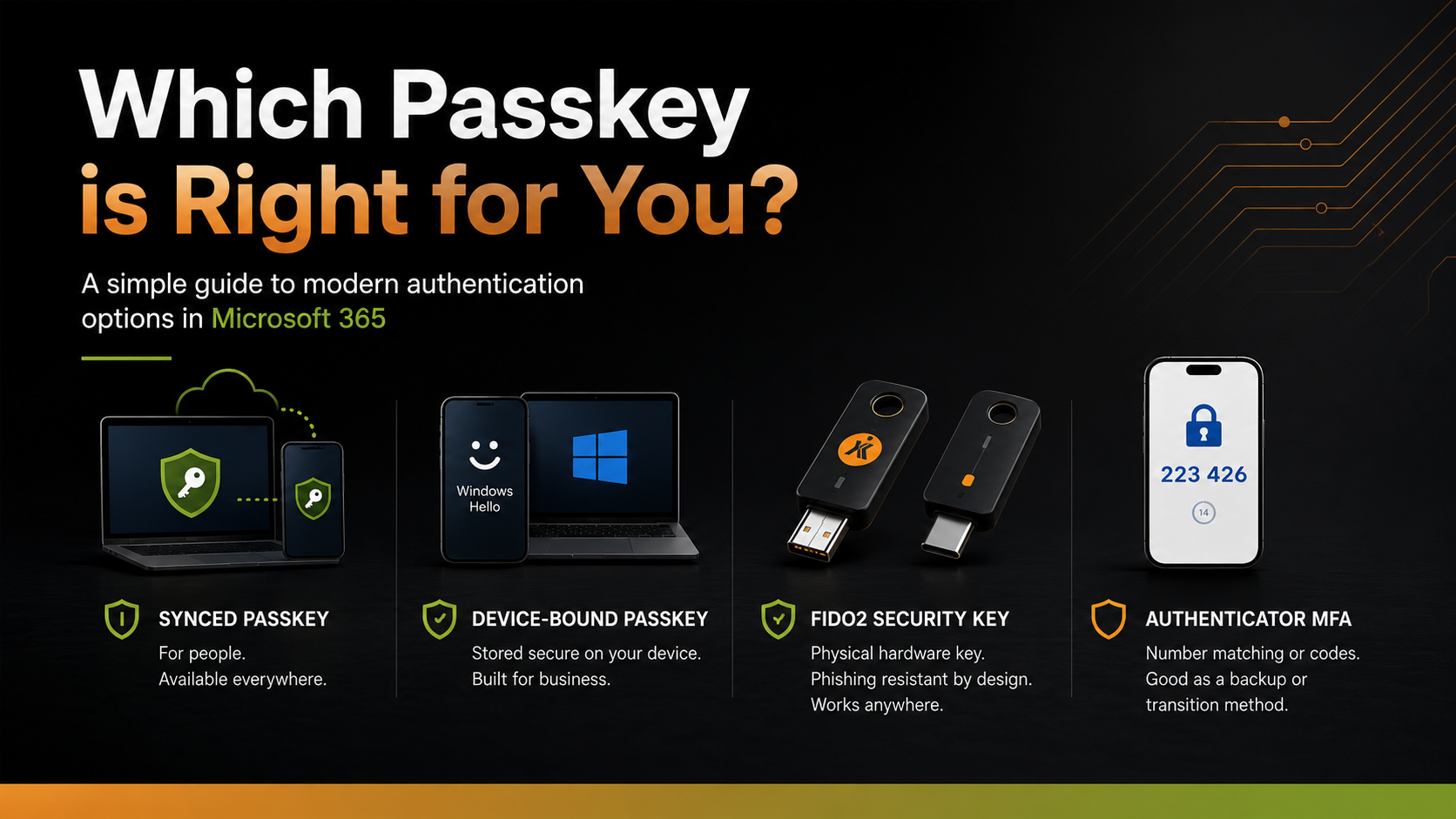
Not All Passkeys Are Equal: Choosing the Right Passkey for the Right Role
Microsoft is continuing its move towards a passwordless future, with Microsoft-hosted SMS and voice authentication being retired in favour of stronger, phishing-resistant authentication methods.
For many organisations, the conversation has shifted from:
“Should we adopt passkeys?”
to:
“Which passkey should we adopt?”
The challenge is that there is no single answer.
Today, users can choose from several different passkey providers and authentication methods, including:
- Apple Passwords
- Google Password Manager
- Microsoft Authenticator
- 1Password
- Bitwarden
- Windows Hello for Business
- FIDO2 Security Keys
Each option has its own strengths, recovery capabilities and operational considerations.
The real question is not which one is best.
The real question is:
Which authentication method is appropriate for the account you are protecting?
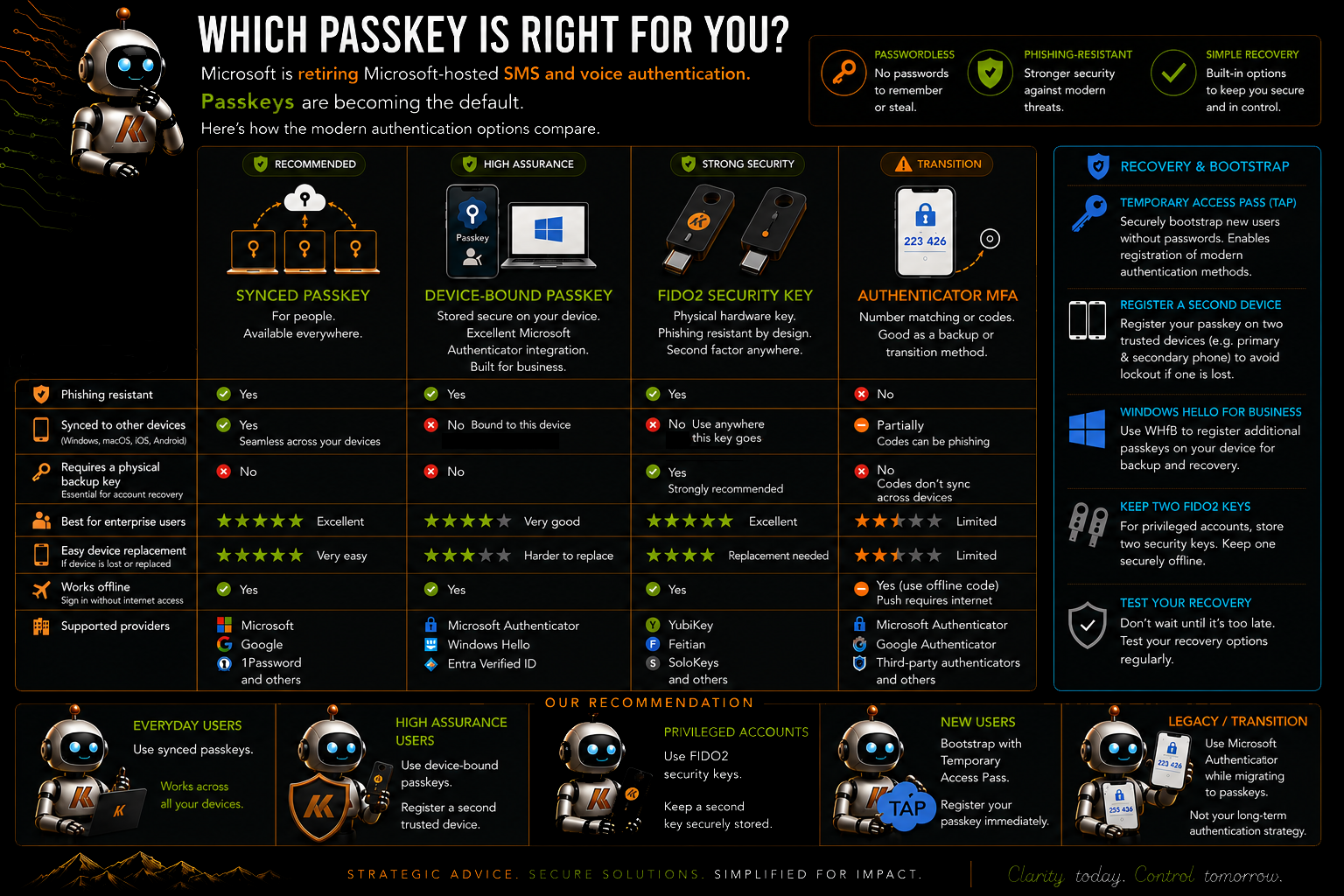
Passkeys Are Not the Same
One of the biggest misconceptions I see is the assumption that all passkeys should be treated equally.
While they all provide phishing-resistant authentication and significantly improve upon traditional passwords, they were designed for different scenarios.
Broadly speaking, passkeys fall into three categories:
Synced Passkeys
Examples include:
- Apple Passwords
- Google Password Manager
- 1Password
- Bitwarden
These passkeys synchronise securely between trusted devices.
For most users, this provides an excellent balance between security and usability.
Benefits include:
- Easy onboarding
- Simple recovery
- Seamless device replacement
- Availability across multiple devices
For everyday users, this is often the best choice.
A secure authentication method that users can easily adopt and recover from is usually better than a more complex solution that creates support challenges.
Device-Bound Passkeys
Device-bound passkeys are tied to a specific trusted device.
Examples include:
- Windows Hello for Business
- Device-bound passkeys within Microsoft Authenticator
- Certain Entra Verified ID scenarios
Unlike synced passkeys, the credential does not roam between multiple devices.
Benefits include:
- Higher assurance
- Strong device trust
- Reduced credential portability
- Excellent integration with Microsoft Entra ID
For business users handling sensitive information, device-bound passkeys provide a strong balance between usability and security.
FIDO2 Security Keys
Physical security keys continue to play an important role in high-assurance identity strategies.
Examples include:
- YubiKey
- Feitian
- SoloKeys
These devices provide phishing-resistant authentication through dedicated hardware and remain one of the strongest authentication methods available.
Benefits include:
- Hardware-backed protection
- Strong identity separation
- Portable authentication
- High assurance authentication
For privileged identities, these remain my preferred option.
The Security Question Is Often the Wrong Question
Whenever passkeys are discussed, the conversation usually centres around security.
Which passkey is the most secure?
Which provider is the strongest?
Which technology is the safest?
In reality, modern passkeys are already highly secure.
The more important question is:
What level of assurance does this account require?
An everyday user accessing email and Teams has very different requirements from a Global Administrator with full control of an organisation’s Microsoft 365 environment.
Trying to apply one authentication strategy to every account often creates unnecessary complexity or introduces operational risk.
My Recommended Approach
Everyday Users
Recommendation: Synced Passkeys
Examples:
- Apple Passwords
- Google Password Manager
- 1Password
- Bitwarden
These solutions offer excellent usability, recovery and cross-device access.
For the majority of users, this is where I would start.
Business Users
Recommendation: Device-Bound Passkeys
Examples:
- Windows Hello for Business
- Microsoft Authenticator Device-Bound Passkeys
These provide stronger assurance by binding the credential to a trusted device while maintaining a familiar user experience.
Privileged Users
Recommendation: Dedicated FIDO2 Security Keys
Examples:
- Global Administrator
- Privileged Role Administrator
- Security Administrator
- Conditional Access Administrator
For these identities, I favour dedicated FIDO2 security keys.
Not because other passkey solutions are insecure.
Quite the opposite.
The reason is identity separation.
The Operational Risk Nobody Talks About
A topic I rarely see discussed is the risk associated with mixing privileged and non-privileged identities within the same authentication platform.
Consider an administrator who has:
- A standard user account
- A privileged administration account
- An emergency access account
If all three identities are using the same passkey provider, there is potential for operational mistakes.
For example:
- Authenticating with the wrong account
- Activating privileged roles under the wrong identity
- Performing administrative actions using the incorrect account
- Creating confusion within audit logs
Again, this is not a weakness in the authentication technology itself.
It is an operational consideration.
For highly privileged identities, I prefer dedicated authentication methods that are used exclusively for administrative activities.
This creates a clear separation between privileged and non-privileged identities.
Recovery Is More Important Than Registration
Another common mistake is focusing entirely on registration while neglecting recovery.
Every passkey strategy should include:
- Primary authentication method
- Secondary authentication method
- Recovery process
My general recommendation is:
Everyday Users
- Primary synced passkey
- Secondary trusted device
Business Users
- Device-bound passkey
- Windows Hello for Business backup
Privileged Users
- Primary FIDO2 security key
- Secondary FIDO2 security key
- Temporary Access Pass recovery process
The objective is simple.
No user should be locked out because a device was lost, replaced or damaged.
Where Temporary Access Pass Fits
Temporary Access Pass (TAP) remains one of my favourite Microsoft Entra capabilities.
It provides a secure method of bootstrapping users into modern authentication without requiring passwords.
TAP is ideal for:
- New user onboarding
- Passkey registration
- Device replacement
- Account recovery
I see TAP as the bridge that helps users move from legacy authentication methods to a modern passwordless experience.
Final Thoughts
Passkeys are quickly becoming the default authentication method across Microsoft 365 and many other platforms.
The challenge is no longer deciding whether to adopt passwordless authentication.
The challenge is choosing the right authentication method for the account you are protecting.
My personal recommendations remain simple:
- Everyday Users → Synced Passkeys
- Business Users → Device-Bound Passkeys
- Privileged Users → Dedicated FIDO2 Security Keys
- Everyone → Have a backup authentication method
Because passwordless authentication is not simply about removing passwords.
It is about applying the right level of assurance to the right identity.
Conclusion
Passkeys aren’t a single technology—they’re a family of phishing-resistant authentication methods, each offering different levels of assurance, usability and recoverability.
For most users, synced passkeys provide the best balance between security and usability. For managed enterprise devices, device-bound passkeys offer higher assurance and stronger device trust. For privileged identities, FIDO2 security keys remain the gold standard, providing the highest level of protection for your most sensitive accounts.
Microsoft’s passwordless strategy isn’t about replacing one authentication method with another. It’s about providing the right authentication method for the right identity, balancing security, usability and operational requirements.
Not all passkeys are equal. They’re all phishing-resistant, but the right choice depends on the identity you’re protecting.
Comments
No comments yet — be the first to leave one below.