
I Gave the Windows 365 Link Another Chance
Four months ago, I put my Windows 365 Link back in its box.
That might sound a little dramatic. The device had not failed completely. It was fast, simple to use and offered one of the most controlled ways of accessing a Windows 365 Cloud PC.
Microsoft Teams worked extremely well. Office applications worked. The sign-in experience was clean and the device did exactly what its name suggested: it connected me directly to Windows 365 without the distractions or complexity of a traditional local Windows installation.
But it did not play audio from YouTube.
It did not play Spotify either.
And, perhaps slightly more importantly than my questionable working playlist, Windows notification sounds were not coming through reliably.
That single limitation was enough to stop me using it.
In May, I wrote about that experience in Windows 365 for Secure Work: The Device Experience Nobody Talks About. The post compared Windows 365 across native Windows, Windows 365 Boot, Windows 365 Link, macOS, mobile devices and a third-party thin client.
The conclusion was not that the Link was a bad device. Far from it. From a security and simplicity perspective, I thought it was genuinely compelling.
But expectations matter, and the audio limitation made it difficult to use as an everyday endpoint.
Today, I gave it another chance.
And something has changed.
Why Audio Became the Deal-Breaker
When I originally tested the Windows 365 Link, Microsoft Teams audio and video optimisation worked properly. Calls were smooth and the media processing behaved as expected.
The problem was everything outside Teams.
In my original testing:
- Spotify played inside the Cloud PC, but no audio reached the speakers connected to the Link
- YouTube displayed video correctly, but without sound
- General Windows audio and notification sounds were inconsistent
It would be easy to dismiss this as a minor inconvenience. After all, the Windows 365 Link is intended as a secure, purpose-built Cloud PC access device, not a home entertainment system.
But general audio is not an entertainment-only requirement.
Organisations use browser-based training platforms, recorded webinars, internal communications, product demonstrations, accessibility tools and third-party meeting services. Many of those experiences depend on audio that sits outside the optimised Microsoft Teams path.
Imagine deploying Link devices into a training environment and discovering that the browser-based course contains video, but nobody can hear it.
That is not an edge case. It is a deployment problem.
For my own day-to-day use, it also meant switching to another device whenever I needed to watch a training video or listen to anything while working. Once you have to keep another endpoint beside a purpose-built endpoint, some of the simplicity starts to disappear.
So the Link went back in its box.
The Retest
I recently reset and re-enrolled the device, connected it to the same Windows 365 Cloud PC and started testing again.
I was not specifically expecting the audio experience to have changed. In fact, I initially assumed I would reproduce exactly the same behaviour as before.
I opened YouTube and played a video.
There was sound.
I tried another video, just to make sure it was not a fluke. That worked too.
Then came the important enterprise validation test: Spotify.
That worked.
Finally, I checked Windows notification sounds. They were also being redirected correctly through the speakers connected to the Windows 365 Link.
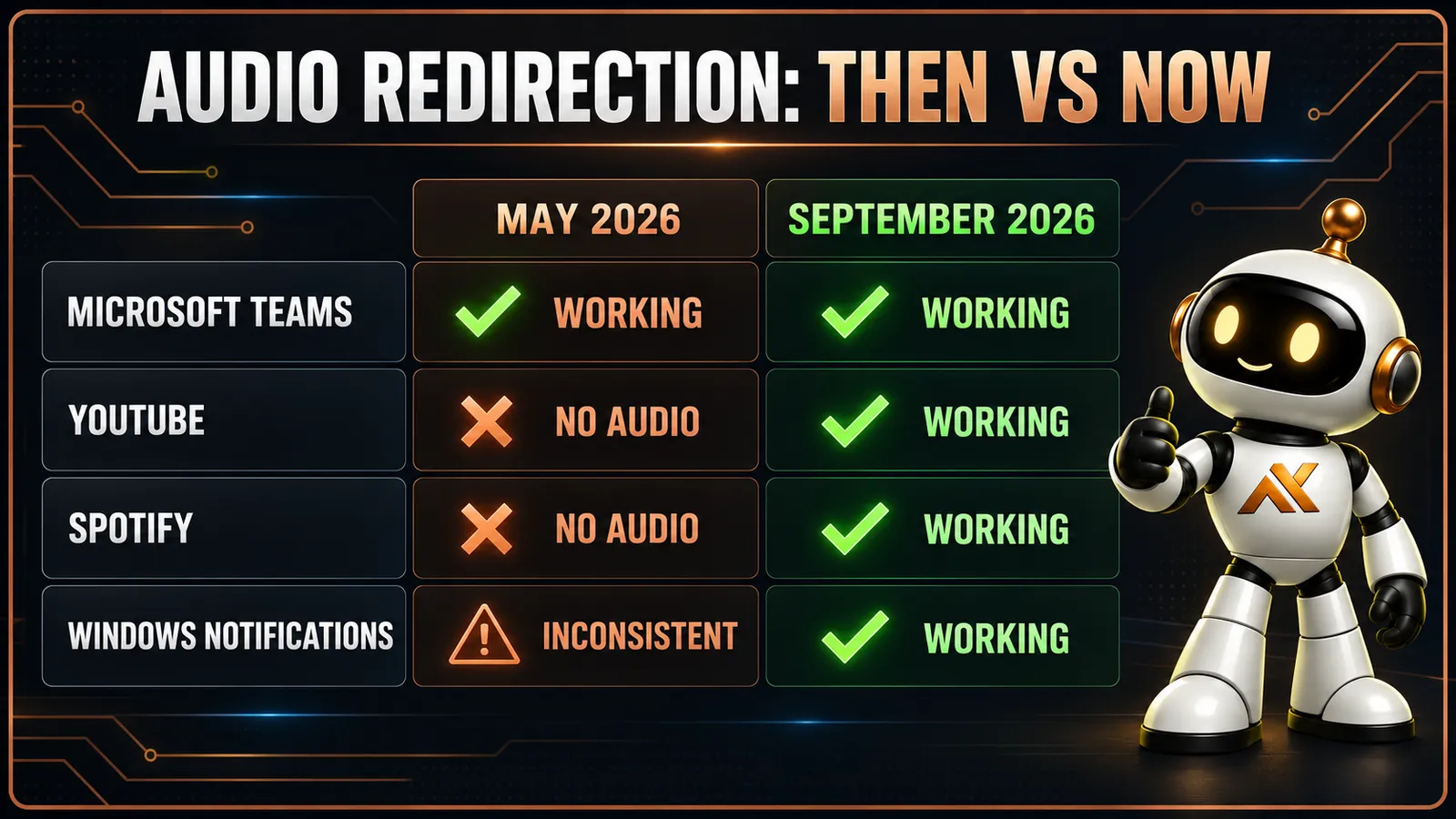
| Workload | May 2026 testing | September 2026 retest |
|---|---|---|
| Microsoft Teams audio | Working | Working |
| YouTube audio | Not working | Working |
| Spotify audio | Not working | Working |
| Windows notifications | Inconsistent or unavailable | Working |
This is not just Teams optimisation. General audio from the Cloud PC is now reaching the endpoint correctly across the applications I have tested.
That is a meaningful improvement.
What Changed?
The honest answer is that I do not yet know.
The Windows 365 Link device is reporting Windows version 10.0.26200.8037 through Microsoft Entra ID at the time of testing.
Microsoft publishes a What’s new in Windows 365 Link page covering new builds, security updates, reliability improvements and fixes. However, I have not found a release note that explicitly says general audio redirection was fixed.
There are several parts involved in delivering a Windows 365 session. The change could have come from the Link operating system, the remote connection components, the Cloud PC, a service-side update or a combination of them.
Without a specific published fix from Microsoft, attributing it to one build would be guesswork.
What I can say is much simpler:
- The same Windows 365 Link previously failed my general audio tests
- I reset and re-enrolled it
- YouTube audio now works
- Spotify audio now works
- Windows notification sounds now work
- Teams audio continues to work
That is the observed behaviour. For me, it resolves the practical problem that caused the device to be put aside.
One Basic OOBE Problem Still Remains
While the audio experience has improved, resetting the device reminded me of another frustration that has not gone away.
The Windows 365 Link still defaulted to a US language and keyboard configuration during the out-of-box experience.
There was no obvious, early prompt asking me to choose my language, region and physical keyboard layout. Changing it afterwards was possible, but even as an IT professional, I would not describe the route as logical or discoverable.
Microsoft documents language selection within the Link’s Quick Settings, and recent updates have expanded the available keyboard layouts. That is useful, but availability and discoverability are not the same thing.
A user should not need to know where Microsoft has hidden the setting before they can type their own sign-in address correctly.
For someone using a UK keyboard with a US layout selected, two particularly noticeable characters move:
@"
That matters immediately because the user is likely to enter an email address or user principal name during sign-in. They press the key combination that should produce @, see " instead, and may reasonably conclude that the keyboard or device is broken.
As an IT professional, I can work out what has happened, find the language settings and correct the layout.
But the person resetting or receiving the device might not be an IT professional.
Imagine the user is a nurse. The Link has been reset following a fault or replacement, and they need to regain access to their Cloud PC. They reach the sign-in screen, but cannot type their username as expected because the keyboard layout is wrong.
Yes, this is where I could roll out the dramatic phrase “life or death”.
The wrong keyboard layout does not directly create a clinical emergency. But delaying access to clinical systems in a time-critical environment is not merely an irritation. Even a small and avoidable delay can have an operational impact, especially when the user does not know what is wrong or how to correct it.
This is exactly the kind of issue that tends to look insignificant during product design and becomes painfully visible during deployment.
The Link needs a clear language, region and keyboard selection step during OOBE. Ideally, organisations should also be able to define the expected defaults through management so that a device deployed in the UK starts with a UK keyboard unless the user chooses otherwise.
This is not an advanced feature request. It is basic first-run usability.
A Missed USB-C Opportunity
The Link includes a rear USB-C port with DisplayPort support, but it cannot be powered through it.
That feels like a missed opportunity.
Many modern business monitors can provide USB-C power delivery while also carrying video and connected peripherals. Supporting that model could turn the Link into a genuinely clean, single-cable endpoint.
Connect it to the monitor and receive power, display, keyboard, mouse, webcam and potentially Ethernet through one cable.
Instead, the Link still requires its separate 65 W barrel-style power adapter.
This is hardly a deal-breaker, but for a compact, purpose-built modern workspace device, it feels unnecessarily old-fashioned. 😉
Why This Changes the Experience
The Windows 365 Link always had a lot going for it.
It offers a constrained, appliance-style endpoint designed around access to a Cloud PC. Users do not get a full local Windows desktop in which to install applications, store data or gradually create years of configuration drift.
From a security architecture perspective, that remains interesting.
A more constrained endpoint can mean:
- A reduced local attack surface
- Less application sprawl
- Less locally stored organisational data
- A more consistent access experience
- Simpler endpoint management
- Fewer opportunities for user-driven configuration changes
That does not automatically make it the correct endpoint for every organisation or every user. It does, however, make it a compelling option for controlled Windows 365 deployments.
The problem was that its constrained design also appeared to constrain a basic part of the user experience.
Now that general audio is working, the balance changes.
The Link no longer feels like a device that works well only when every interaction stays inside Microsoft 365 and Teams. It feels much closer to the dedicated Cloud PC endpoint I expected it to be in the first place.
That is particularly important for organisations considering the device for:
- Task workers
- Shared or controlled working environments
- Secure remote access
- Training and education scenarios
- Contractors and temporary staff
- Users whose applications and data should remain within the Cloud PC
- Privileged or tightly governed working patterns
Audio will rarely be the headline requirement in an architecture document. It is exactly the sort of detail, however, that can determine whether users accept or reject the finished solution.
The AVD Support That Still Is Not There
There is another limitation that is harder to explain away as a product still maturing:
Windows 365 Link does not support Azure Virtual Desktop.
It does not support Microsoft Dev Box either.
Microsoft is explicit about this in its Windows 365 Link FAQ. The Link is described as a purpose-built device for Windows 365, optimised around simplicity and security.
I understand the product positioning. The clue is quite literally in the name.
But I still think excluding Azure Virtual Desktop is a missed opportunity.
The wider Windows App can present resources from Windows 365, Azure Virtual Desktop and Microsoft Dev Box. On most supported client platforms, users can sign in and access the desktops and applications assigned to them across those services.
The Windows 365 Link provides one of the slickest appliance-style experiences Microsoft has produced for cloud-hosted Windows. The device starts, the user authenticates and their Cloud PC is presented without the clutter of a conventional local desktop.
Now imagine that same experience presenting:
- A dedicated Windows 365 Cloud PC
- A pooled Azure Virtual Desktop session
- A personal Azure Virtual Desktop desktop
- Published RemoteApps
- A Microsoft Dev Box
That would make the Link relevant to a much broader range of virtual desktop designs.
AVD is often selected precisely for the environments where a small, controlled access device makes sense: shared workspaces, task workers, contact centres, healthcare, training rooms and organisations that need the flexibility of pooled or multi-session desktops.
The hardware and user experience already feel like a natural fit. The service restriction is what prevents that combination.
Is the Restriction Deliberate?
This is speculation rather than something Microsoft has stated, but it is difficult not to wonder whether the boundary is at least partly a product decision intended to keep the Link closely aligned with Windows 365.
Allowing it to connect to AVD could make the device attractive to organisations that want Microsoft’s endpoint experience without adopting Windows 365 licensing and its dedicated Cloud PC model.
It would also place Microsoft into more direct competition with established thin-client vendors such as 10ZiG and IGEL.
Would that create competition? Absolutely.
I do not think that would be a bad thing.
The Third-Party Thin-Client Experience
I tested a 10ZiG device last year as part of the original endpoint comparison. This was my experience with the specific device and software version available at the time, not a claim about every current 10ZiG deployment.
Functionally, it connected me to the remote environment. The overall experience, however, felt considerably less polished than the Windows 365 Link.
The interface reminded me of an early-2000s Linux desktop. Device redirection felt relatively restricted, and I could not get my FIDO2 security key or Authenticator passkey workflow working as required.
Those capabilities may have changed since my testing, and different configurations or newer software might produce a better result. But the comparison exposed an important point: supporting a remote desktop protocol is not the same as delivering a good end-user experience.
The Windows 365 Link feels intentional. Its interface is clean, authentication is integrated and the transition into the Cloud PC is remarkably slick.
If third-party vendors offered an equally polished Windows 365 and AVD experience, backed by strong device redirection and modern phishing-resistant authentication, they would provide meaningful competition and wider hardware choice.
Equally, if Microsoft allowed the Link to present AVD resources, it would set a much higher first-party benchmark for the entire thin-client market.
For now, customers must choose between the Link’s polished but Windows-365-only experience and broader third-party platform support that may not provide the same level of integration or simplicity.
I would like Microsoft to remove that choice.
Does This Change My Original Verdict?
Yes, but it does not invalidate the wider conclusion from my original post.
The endpoint still matters.
The Cloud PC might be identical, but the device used to reach it continues to influence authentication, peripheral support, media handling, device trust and the overall user experience.
That was the central point of my original testing, and it remains true.
What has changed is my assessment of the Windows 365 Link within that comparison.
Previously, I saw it as a strong security-focused access device with a surprising usability compromise. It was something I could recommend for narrow, controlled scenarios, but not something I wanted to use as my main Windows 365 endpoint.
With general audio now working, one of the largest gaps between the Link and Windows 365 Boot has narrowed considerably.
I am not ready to declare the device perfect after a handful of successful tests. I want to use it for a sustained period and validate:
- Audio after repeated disconnects and reconnects
- Behaviour following device and Cloud PC restarts
- USB and Bluetooth audio devices
- Microphone redirection outside Teams
- Browser-based training and meeting platforms
- Multi-monitor behaviour during daily work
- Passkeys, FIDO2 and privileged administration workflows
But the important difference is that I now want to continue testing it.
In May, the audio limitation ended the experiment. In September, the Link is back on my desk.
It Is Not the Only Limitation That Has Changed
Audio redirection on the Windows 365 Link was not the only significant limitation identified in my original comparison.
The other was WebAuthn redirection when connecting to Windows 365 from macOS.
At the time, I could authenticate to the Windows App on my Mac using a passkey and establish the remote session. The problem came when another authentication challenge occurred inside the Cloud PC.
That matters when you need to:
- Sign into a different Microsoft Entra account
- Use an InPrivate browser session
- Satisfy a Conditional Access authentication context
- Activate a privileged role through PIM
- Complete a sensitive administrative operation using phishing-resistant MFA
The passkey or FIDO2 security key available on the Mac could not be redirected into the remote Windows session. For general productivity that might have been manageable. For privileged access, it was a genuine blocker and one of the reasons I moved back from using my Mac as my primary endpoint.
Microsoft has since introduced in-session WebAuthn redirection in preview through the Windows App Beta on macOS. I covered that change separately in WebAuthn Redirection Comes to the Windows App on macOS.
The preview can redirect supported Microsoft Entra authentication challenges from the remote session to a passkey stored on the Mac, a connected FIDO2 security key or another device using cross-device authentication.
There are still important caveats. It remains a preview capability, it requires the Windows App Beta, and browser-based connections should not be assumed to provide the same redirection experience.
Even with those caveats, it directly addresses another of the practical gaps from my May testing.
In the space of four months, two of the findings that most strongly influenced my endpoint choices have moved forward:
- WebAuthn redirection is beginning to remove a major authentication limitation on macOS
- General audio is now working in my Windows 365 Link testing
That does not make every endpoint equivalent. It does demonstrate how quickly the comparison can change as Microsoft develops the clients, endpoint operating systems and supporting services.
Products Change, So Should Our Conclusions
There is a broader lesson here for anyone evaluating cloud services and modern endpoint platforms.
Reviews capture a product at a moment in time.
That does not make the original results wrong. The audio limitation was real, repeatable and significant during my earlier testing. It affected how I could use the device and how I would have advised a customer considering it.
But cloud-connected products evolve quickly. Operating systems update, services change and features mature. A limitation that shaped an architectural decision four months ago might no longer exist today.
That is why technical recommendations need to be revisited, particularly when the original decision came down to one specific blocker.
We should not quietly rewrite history when a product improves. We should document what changed and reassess the conclusion.
Final Thoughts
Four months ago, the Windows 365 Link went back in its box because one seemingly small limitation made it impractical for the way I work.
Today, YouTube played.
Spotify played.
Windows notifications made noise.
That does not make the Windows 365 Link perfect. It does not mean every peripheral, authentication or privileged access scenario will behave exactly like native Windows or Windows 365 Boot.
It also does not excuse an out-of-box experience that can leave a UK keyboard behaving as a US keyboard without clearly asking the user what they need.
But it removes the issue that stopped me using it.
The Windows 365 Link is back on my desk, and this time it might stay there.
Perhaps it deserved another chance after all.
Comments
No comments yet — be the first to leave one below.
Published — it will appear for everyone in a couple of minutes once the site updates.