Some applications still ask a familiar question: is this connection coming from an approved public IP address?
That becomes awkward when the user is working from home, travelling or moving between networks. The application may be perfectly happy with their credentials and still reject the connection because the source IP has changed.
In Part 1, we deployed the Global Secure Access Windows client through Intune. In Part 2, we captured SharePoint traffic using the Microsoft 365 channel and public website traffic using Internet Access. We also looked at how to inspect the client’s forwarding decisions.
Part 3 introduces the Microsoft Entra Private Network Connector (PNC) through a practical source IP anchoring use case. The PNC is a Windows Server agent that connects your network to the Private Access service and provides the route to selected applications. It can run on a workgroup or Active Directory domain-joined Windows Server; domain membership is not required for the anchoring scenario in this article. See Understand private network connectors.
We’ll install the connector, configure a narrowly scoped application and use the same diagnostic habits to check what public IP the destination actually sees.
I covered the design in Giving SaaS Applications a Fixed Egress IP with Microsoft Entra Private Access. This instalment is the practical companion: the installation, the configuration and the evidence I would collect before calling the pilot successful.
Lab status: The earlier client and traffic observations come from Parts 1 and 2. The Part 3 installation and tests below are planned, documentation-based steps. No connector installation, new application result or anchored source IP is claimed here. Screenshots will be added from the lab. Microsoft documentation was checked on 13 October 2026; confirm current requirements and portal labels when you run the steps.
1. Understand the path we’re trying to prove
For a selected application, the intended path is:
Windows client → Global Secure Access → Private Network Connector → controlled outbound network → application
The destination sees the public egress IP of that network. It doesn’t necessarily see the connector server’s own address. A firewall, NAT device or proxy may provide the final public source IP. Microsoft’s source IP anchoring guidance describes this pattern.
The useful distinction is between anchoring, which changes the application traffic path, and source IP restoration, which preserves the original user public IP in supported Entra sign-in logs. They solve different requirements. If you only need an identity-provider network condition, assess compliant network checks before introducing this additional route. See the same Microsoft guidance.
For this pilot, I want to answer two separate questions:
- Did the client send the selected application connection through Private Access?
- Did the destination see the public IP we intended?
A green connector status or a successfully loaded page cannot answer both.
2. Choose the application and evidence before installing
You need a destination that can tell you which source IP it received. Without that, you can prove the client sent traffic through Private Access, but not what the application actually saw.
Choose a test application you control, or a SaaS application whose administrator can show you the source IP for a specific request or session.
A public website is useful only if you can get meaningful evidence from the destination side. We used www.andykemp.com in Part 2 to demonstrate Internet Access, but that alone doesn’t make it an anchoring test endpoint. A generic “what is my IP” site has the same problem. It only counts if its own hostname is part of the test configuration.
For this lab, I deployed a small Cloudflare Worker at anchor-test.andykemp.com. It does one job: it shows and logs the source IP that reached Cloudflare, with a UTC timestamp and a test value taken from the URL. Because I own the endpoint, I control both the hostname in the Private Access application and the evidence at the other end.
Start with one exact hostname and TCP 443, and write down the plan before you install anything:
| Item | What to record | My lab |
|---|---|---|
| Application | Exact hostname, ports and supporting destinations | anchor-test.andykemp.com, TCP 443, no dependencies |
| Pilot | Windows device, user and application assignment group | Part 1 pilot device and GSA-Pilot-Users |
| Connector | Server, version and connector group | RAZORCREST, in GSA-Source-IP-Pilot |
| Outbound path | Firewall, NAT or proxy, and the expected public IP | Lab internet connection: Anchored IP (expected) |
| Evidence | Which destination log or endpoint reports the source IP | The endpoint’s page and Cloudflare Workers Logs |
| Timing | Test time and time zone on client and destination | UTC on both |
If a CDN or reverse proxy sits in front of the application, agree which log field holds the connecting client’s address. An origin log may only show the intermediary. Use the edge log or a trusted client-IP field. My endpoint runs on Cloudflare’s edge and reads CF-Connecting-IP, which Cloudflare sets itself. Don’t treat an arbitrary forwarded header as proof.
Capture a baseline request from the pilot device before configuring anything. Record the source IP you actually see, rather than assuming it’s the user’s home IP. Existing Internet Access, VPN or proxy routing may already change it.
In my lab, it did. The pilot device runs the Global Secure Access client with Internet Access enabled from Part 2, so the endpoint saw a Microsoft edge address, not my network:
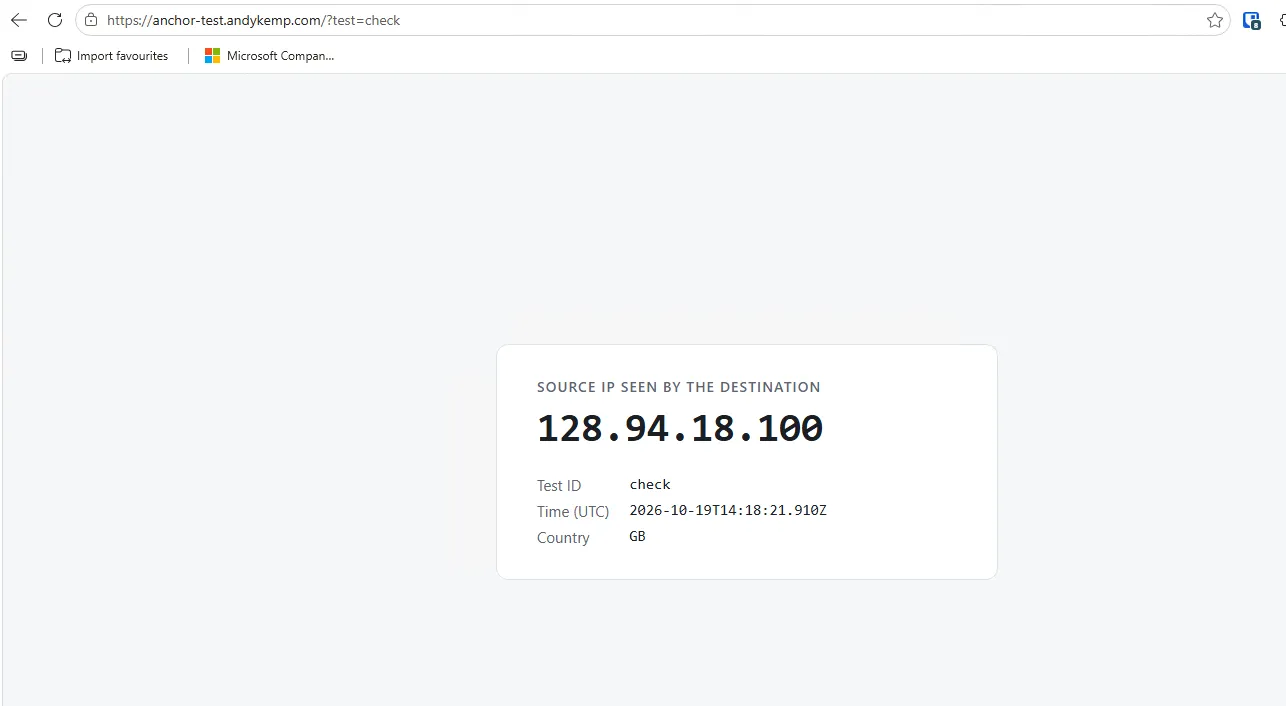
Figure 1: Baseline. Before the anchoring application exists, the request to
anchor-test.andykemp.com/?test=baselinegoes through Global Secure Access Internet Access. The destination sees a Microsoft edge address (128.94.18.100), not the organisation’s network.
Once anchoring is configured, the same request should leave through the connector’s network instead, and the destination should see a different address.
3. Prepare the connector server
Workgroup or domain joined?
Either is suitable for this source IP anchoring pilot. The connector server does not need to join an Active Directory domain just to register with Entra and forward the selected SaaS traffic. Choose the server membership that fits your management model; DNS resolution, outbound connectivity and the controlled egress path still need to work. Microsoft explicitly supports connectors on machines that are not domain joined. See connector requirements.
Domain membership becomes relevant for other scenarios, such as Application Proxy single sign-on using Integrated Windows Authentication and Kerberos Constrained Delegation. Those scenarios have additional domain and delegation requirements; they are not prerequisites for this SaaS anchoring lab. See connector installation guidance.
Server and network prerequisites
Use a supported, patched Windows Server with DNS and outbound connectivity to both the Microsoft service endpoints and the target application. The connector installation guide lists Windows Server 2016 or later, .NET 4.7.2 or later and TLS 1.2. For a new deployment, choose a currently supported release. See connector installation requirements.
You’ll need local installation rights and an Application Administrator account for registration. Creating the Private Access application also needs Global Secure Access Administrator. Check that the pilot users have Microsoft Entra ID P1 or P2 plus Private Access or Entra Suite licences. See per-app prerequisites and traffic profile licensing.
In my lab, the connector server is RAZORCREST, a Windows Server 2025 Datacenter VM joined to my lab domain. Domain membership isn’t needed for this scenario, but it’s how my lab is built.
Before installing anything, I ran these checks on the server:
(Get-CimInstance Win32_OperatingSystem).Caption
Get-CimInstance Win32_ComputerSystem | Select-Object Name, PartOfDomain, Domain, Workgroup
(Get-ItemProperty 'HKLM:\SOFTWARE\Microsoft\NET Framework Setup\NDP\v4\Full').Release -ge 461808
Resolve-DnsName anchor-test.andykemp.com -Type A | Select-Object Name, IPAddress
Test-NetConnection anchor-test.andykemp.com -Port 443 | Select-Object ComputerName, RemotePort, TcpTestSucceeded
Invoke-RestMethod "https://anchor-test.andykemp.com/json?test=connector-server"| Check | Result |
|---|---|
| Operating system | Windows Server 2025 Datacenter |
| Membership | Domain joined |
| .NET 4.7.2 or later | True |
| DNS resolution of the test endpoint | Resolves |
| TCP 443 to the test endpoint | TcpTestSucceeded: True |
| Server’s public egress IP | Anchored IP (expected) |
The last check matters most. A successful TCP test proves the server can reach the application. It doesn’t tell you which public IP the application will see. The final request goes to the test endpoint itself, which reports the source IP it received.
From the pilot client, the same endpoint reported a Microsoft Global Secure Access edge address (Figure 1). From the connector server, it reports the lab’s own public IP. That’s the address I expect the destination to see once anchoring is working. If Figure 9 shows the same address, the anchoring is proven.
Don’t run the Global Secure Access client on the connector server. If you do, the server’s own traffic is tunnelled too, and this baseline will show a Microsoft edge IP instead of your network’s egress.
Review the current outbound URL and port requirements with your network team. The connector only makes outbound connections, so this pattern doesn’t need an inbound port forward to the server. Don’t apply TLS inspection or termination to connector-to-cloud traffic, as the installation guide specifies.
Decide the controlled outbound path now. If different members of the connector group leave through different public IPs, the application’s allow-list must cover all of them. A fixed IP comes from the network design, not from the connector installer.
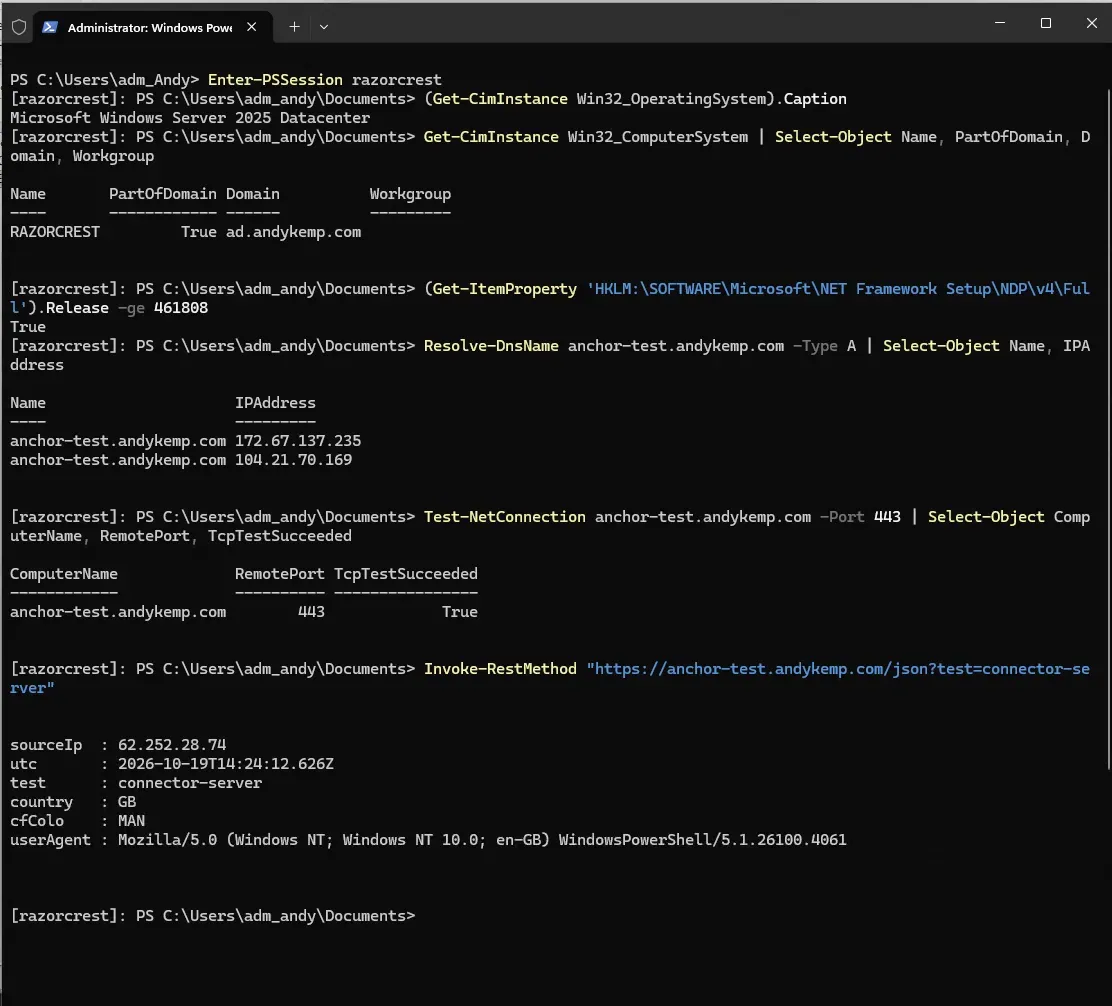
Figure 2: Connector server prerequisites on RAZORCREST: Windows Server 2025, domain joined (not required for anchoring), .NET 4.7.2 or later, and DNS and TCP 443 reachability to the test endpoint. The final request shows the server’s own public egress IP, which is the address we expect the destination to see once anchoring is in place.
4. Install and register the PNC
The installer is an interactive wizard with an Entra sign-in, so run it from a console or RDP session on the server. I ran the Figure 2 checks over Enter-PSSession, but that won’t work for the install.
On your PNC Server:
- Sign in to the Microsoft Entra admin centre and check you’re in the intended tenant.
- Go to Global Secure Access › Connect › Connectors and sensors. Microsoft’s documentation calls this page Connectors. My tenant labels it Connectors and sensors.
- Select Download connector service, review the terms and download the installer.
- Run the installer, accept the licence terms and select Install.
Before you run the installer: turn off IE Enhanced Security Configuration
The registration sign-in runs in an embedded browser window that still uses the legacy IE components. With IE Enhanced Security Configuration (IE ESC) on, which is the default on Windows Server, the sign-in page is blocked, so registration either fails or never shows a usable prompt.
Turn it off for administrators before you run the installer:
- Open Server Manager › Local Server.
- Next to IE Enhanced Security Configuration, select On.
- Under Administrators, select Off, then OK.
Figure 3a: IE Enhanced Security Configuration turned off for administrators on the connector server, before running the installer.
Or use PowerShell:
# Turn off IE ESC for administrators
Set-ItemProperty -Path 'HKLM:\SOFTWARE\Microsoft\Active Setup\Installed Components\{A509B1A7-37EF-4b3f-8CFC-4F3A74704073}' -Name IsInstalled -Value 0
Stop-Process -Name explorer -Force
Leave it on for users. Only the administrator installing the connector needs it off.
Turn it back on once registration is complete. The connector doesn’t need IE ESC off to run, only to register. If you reinstall or re-register the connector later, you’ll need to turn it off again temporarily.
# Turn IE ESC back on for administrators
Set-ItemProperty -Path 'HKLM:\SOFTWARE\Microsoft\Active Setup\Installed Components\{A509B1A7-37EF-4b3f-8CFC-4F3A74704073}' -Name IsInstalled -Value 1
Stop-Process -Name explorer -Force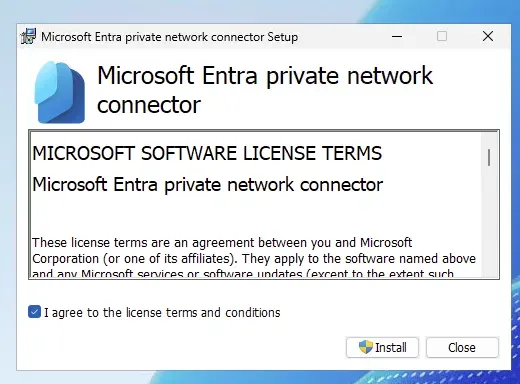
Figure 3a: The Microsoft Entra private network connector installer.
- When the installer asks you to register, sign in with an account that holds Application Administrator for the intended tenant. The prompt is branded Microsoft Azure rather than Entra, so don’t be thrown by it. I activated the role through PIM first rather than using a standing assignment.
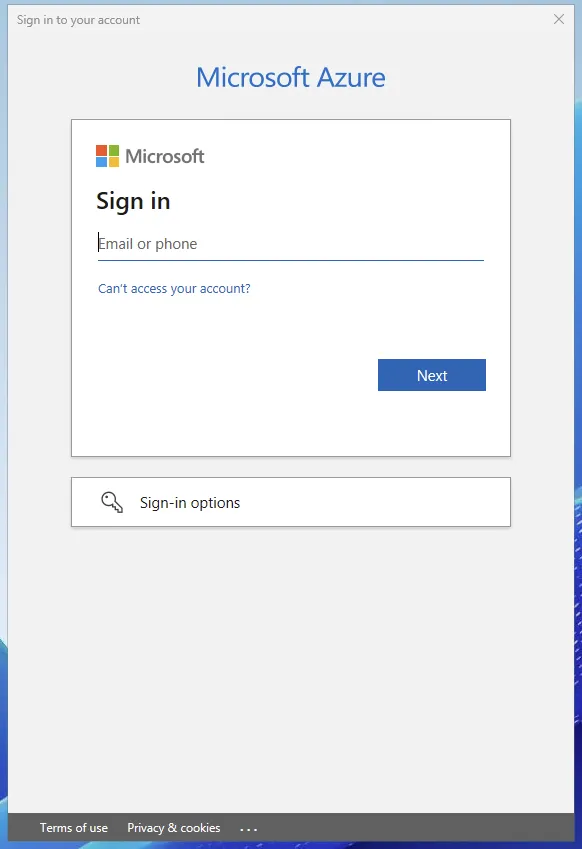
Figure 3b: The registration sign-in. Don’t capture the credentials or MFA prompts that follow.
- Wait for Setup Successful.
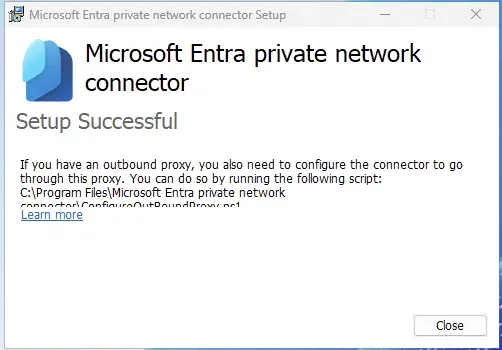
Figure 3c: Installation and registration complete.
The completion screen also mentions outbound proxies. If the server reaches the internet through a proxy, the connector needs configuring with the ConfigureOutBoundProxy.ps1 script in C:\Program Files\Microsoft Entra private network connector\. My lab has no outbound proxy, so I skipped it. If you have one, it also affects which public IP the destination sees, so record it in your outbound path from section 2.
- Go back to Connectors and sensors and refresh. The server should appear as Active.
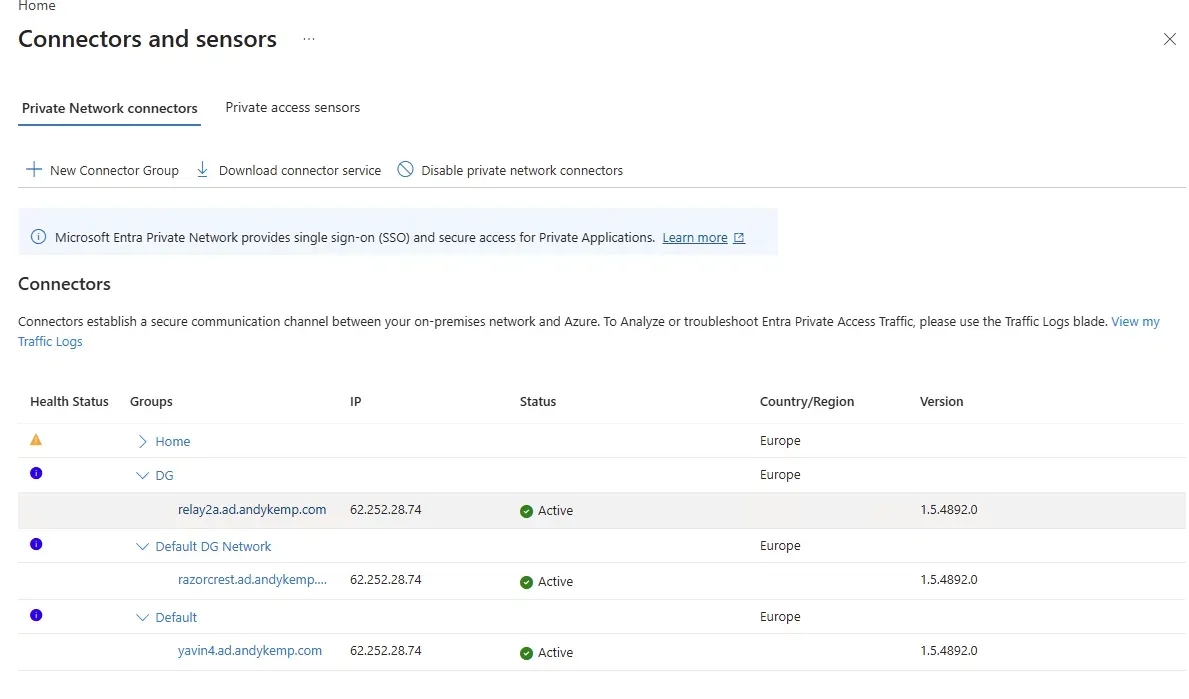
Figure 3d: RAZORCREST registered and Active on connector version 1.5.4892.0. The IP column shows the public address the connector uses to reach the service. It matches the egress IP from Figure 2.
A few things to notice in my tenant:
- RAZORCREST landed in Default DG Network, not a group called Default. New connectors join whichever group is set as the default, so check where yours went. Section 5 moves it to a dedicated group.
- The IP column is early evidence, not proof. It shows the address the connector uses to reach Microsoft. That matches Figure 2 here, but the address the application sees still has to be checked at the destination, which section 10 does.
- Other connectors are listed too. My lab has connectors in other groups serving other applications. Leave them alone.
Then check the services on the server:
Get-Service *connector* | Select-Object DisplayName, StatusBoth Microsoft Entra private network connector and Microsoft Entra private network connector updater should show Running. Services, updates and monitoring are covered in Understand private network connectors.
Active tells us the connector can reach the service. It doesn’t tell us anything about the application route yet. That’s what the rest of this post tests.
5. Put the connector in a deliberate group
Create a lab connector group, for example GSA-Source-IP-Pilot, and place the intended connector in it. Use this group for the application rather than relying on an unexplained default group. See connector groups.
For an initial lab, one connector keeps the route easy to inspect. It is also a single point of failure. Microsoft recommends at least two connectors for high availability. Confirm that each production member can reach the application and has a suitable outbound IP. See connector architecture.
Don’t move an existing connector out of a group used by other applications simply to tidy this lab. Record current dependencies first.
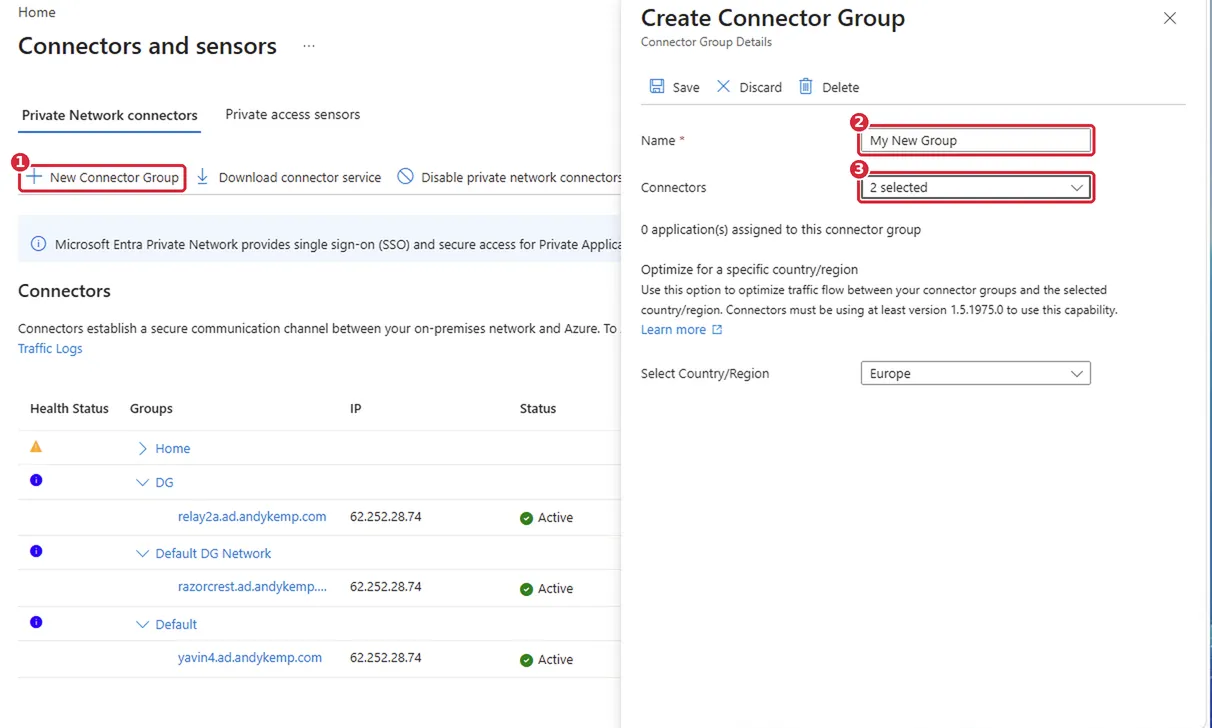
Figure 4 : Pilot connector group with the intended active connector or connectors.
6. Define the selected application
The cleanest design is a dedicated Global Secure Access enterprise application for the pilot. It keeps the destination and user scope narrow and easy to review. The per-app guide covers that route.
In my lab, I already had Quick Access in use for private subnets and RDP. I added the test endpoint to it as one more segment rather than building a new application. It’s quicker, and it’s what many readers will do first. The trade-off is scope: everyone assigned to Quick Access is now in scope for the anchored route, not just a pilot group.
In Global Secure Access › Applications › Quick Access, I set the connector group and added one FQDN segment:
| Setting | Lab value |
|---|---|
| Application | Quick Access (existing) |
| Connector group | My New Group, containing RAZORCREST |
| Destination type | Fully qualified domain name |
| Destination | anchor-test.andykemp.com |
| Protocol | TCP |
| Ports | 80, 443 |
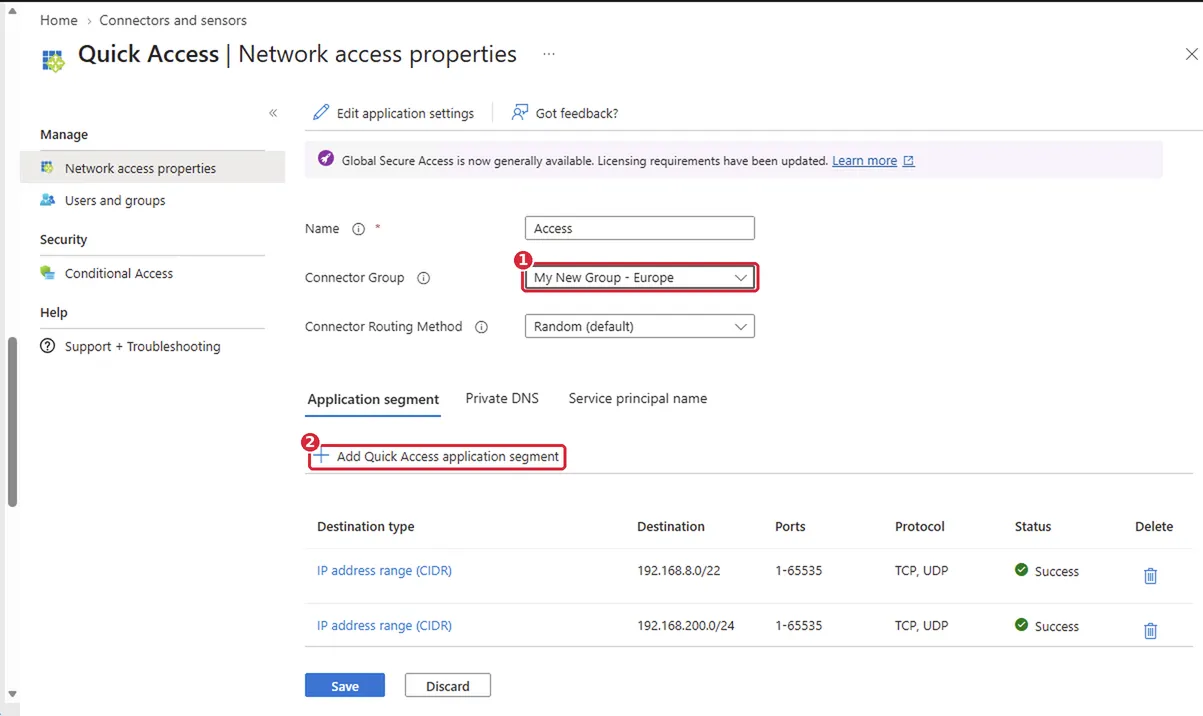
Figure 5a: Quick Access with its existing private segments, now using the pilot connector group.
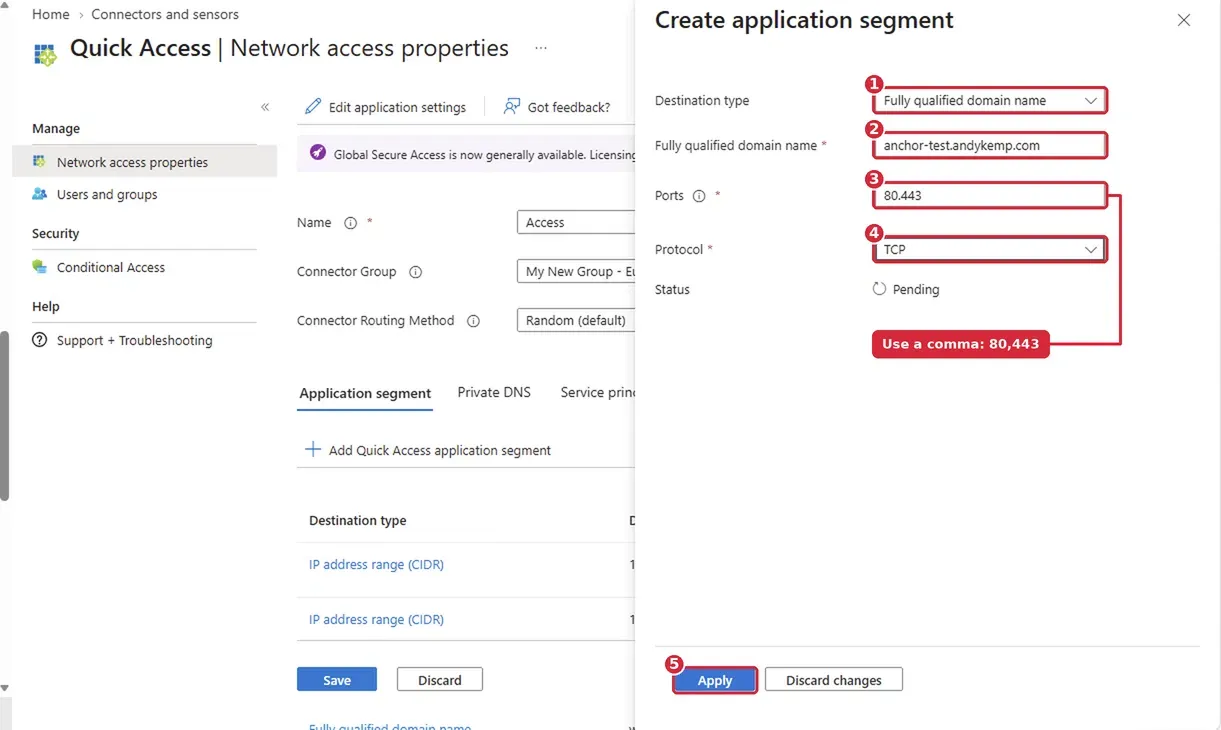
Figure 5b: Adding
anchor-test.andykemp.comas an FQDN segment on TCP 80 and 443.
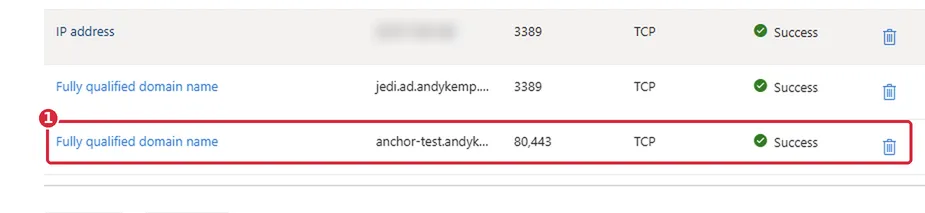
Figure 5c: The new segment saved. It shows Pending until the configuration applies, then Success.
Changing Quick Access’s connector group moves all of its destinations to that group, not just the new one. Before you change it, check that every connector in the new group can reach everything Quick Access already serves. In my lab, I confirmed RDP to an existing server still worked afterwards.
Enter multiple ports with a comma, as in 80,443. I typed 80.443 first, and it was accepted as a pending value. Check the saved segment shows the ports you meant.
Use the FQDN, not the IP addresses. My endpoint sits behind Cloudflare, so anchor-test.andykemp.com resolves to shared anycast addresses that also serve thousands of other sites. An IP-based segment would send all of them through the connector. The same applies to most SaaS applications behind a CDN.
You don’t need to remove the hostname from Internet Access. Global Secure Access checks the Private Access profile before the Internet Access profile. Once this segment reaches the client, it takes the connection instead of Internet Access. Section 9 checks that it does.
For production, move the destination into a dedicated application with its own assignment and Conditional Access policy, and check for overlapping destinations, ports and protocols. Don’t add a broad wildcard just because one page hasn’t loaded.
7. Scope access to the pilot
Assign the pilot group to the enterprise application. Separately, confirm that the Private Access forwarding profile applies to the pilot user/device and Windows platform. An enabled profile, an application assignment and an Intune client deployment are different controls. See profile assignment guidance.
Part 2 showed Private Access enabled in the tenant and successful channel health checks. Neither proves that this new application has been assigned or that its traffic uses the connector we’re installing.
Review Conditional Access for this application using your normal pilot process, with Conditional Access Administrator permissions for policy changes. Test any new policy in report-only first and assess existing enforced policies before testing. Application network access and the SaaS application’s own authentication remain separate checks. See Conditional Access for Private Access applications.
Where the SaaS application supports its own network allow-list, add the controlled egress IP or approved IP set through its administration process. Keep a recovery route and avoid immediately removing existing allowed addresses while the pilot is unverified.
Figure 6 — screenshots pending: Pilot application assignment and effective Private Access profile scope. Include relevant access policy configuration only if tested for this article.
8. Resolve client prerequisites before the anchoring test
In Part 2, IPv4 preferred and QUIC disabled in Edge returned False. Preserve those original observations. For this TCP-based anchoring test, address the relevant client prerequisites and capture a new health check after changes.
Review Microsoft’s current limitations for IPv6, QUIC and encrypted DNS. Apply supported settings to the pilot through the appropriate device/browser management controls, record what changed and create fresh connections afterwards. Don’t assume that a successful TCP request establishes coverage for UDP or every application dependency.
Figure 7 — screenshot pending: Current client health results after prerequisite review. Describe the actual results; don’t label the device healthy unless the checks support it.
9. Verify the delivered rule and real traffic
Allow configuration to reach the client. Open Advanced Diagnostics → Forwarding profile and look for the test application’s destination, protocol and port in the Private Access rules. Preserve its Rule ID and application identifier where available. Use Policy tester if you need to identify the effective rule; Refresh details reloads cached data rather than forcing policy retrieval. See Advanced Diagnostics.
Then run one small test:
- Save your work and close existing browser windows.
- Start a fresh Traffic collection without an action filter.
- Record the time and browse to the exact test URL.
- Identify the connection using hostname, browser process and time.
- Save its protocol, port, channel, action and Rule ID; export the CSV.
Expected, not yet observed: The intended connection shows Private Access and Tunnel. If it still uses Internet Access, investigate the effective application/profile scope and destination match before proceeding.
Figure 8a — screenshot pending: Effective rule for the anchoring test destination.
Figure 8b — screenshot pending: Actual TCP 443 connection, including channel, action and Rule ID. Caption it as Private Access/Tunnel only if the capture shows those values.
10. Prove the anchored public IP at the destination
Find the corresponding request or session in the destination’s evidence source. Compare its time and identifying request/session details with the client test. A unique harmless test URL parameter can help if your controlled endpoint logs it.
The source IP must match the expected controlled network egress. Microsoft’s anchoring validation procedure explicitly calls for checking application-side evidence rather than relying on Entra sign-in logs.
Keep the result in a simple evidence record:
| Check | Expected result | Lab result |
|---|---|---|
| Connector registration | Active in intended group | Not yet captured |
| Effective destination rule | Test hostname, TCP 443, Private Access | Not yet captured |
| Client connection | Private Access / Tunnel | Not yet captured |
| Destination source IP | Controlled egress IP or approved IP set | Not yet captured |
| Application access | Intended user can complete the chosen operation | Not yet captured |
A generic “what is my IP” website only validates anchoring if that site’s own connection is deliberately included in the test configuration. Its result doesn’t establish the path of a different SaaS application.
Figure 9 — screenshot pending: Destination-side evidence for the same test showing the intended egress IP. Include the correlation basis in the caption. This is the decisive anchoring result.
11. Troubleshoot the stage that failed
| Symptom | Investigation |
|---|---|
| Registration fails | Tenant, administrator role, server prerequisites and outbound service connectivity. |
| Connector active but app unreachable | DNS and TCP reachability from the connector, application port and outbound firewall/proxy path. |
| Destination rule missing | App segment, client access setting, application assignment, profile scope and configuration freshness. |
| Connection uses Internet Access | Actual hostname/protocol/port, effective Private Access rule and pilot assignments. |
| Private Access Tunnel but wrong source IP | Selected connector group, each member’s route, NAT/proxy and destination log field. |
| Some requests work, others fail | Redirects, dependencies, protocol differences and multiple possible egress paths. |
| Destination evidence unavailable | Mark anchoring unverified; retain client evidence without claiming end-to-end success. |
Use the connector’s Admin log and, when needed, Session logging to investigate reproduction. Microsoft’s connector monitoring guide explains the event logs and notes that Session logging is disabled by default. Collect only the period needed and review logs before sharing them.
For production, also test connector failure and maintenance. All surviving paths need to satisfy the destination’s network policy. Session persistence can be relevant to IP-sensitive applications, but it doesn’t repair an unsuitable outbound network design; review per-app routing options before adopting it.
12. Keep rollback specific to this application
Before changing the pilot, record its existing assignments, segments, access policies and destination allow-list.
If the test fails, retain the captures first. Restore the previous pilot-specific configuration and verify a fresh application connection. Check policies that depend on Private Access before removing its route. Don’t disable a shared tenant profile or stop connectors serving other applications as a shortcut.
For an application with an enforced source-IP allow-list, arrange a working alternative path before removing anchoring. Otherwise the user can have valid credentials and still be locked out.
The pilot is complete when the configuration, client capture and destination evidence agree. Installing the PNC is the first step; proving the public IP seen by the application is what turns it into a source IP anchoring result.
References
- Source IP anchoring with Global Secure Access
- Configure and install private network connectors
- Understand private network connectors
- Understand connector groups
- Configure per-app access
- Traffic forwarding profiles and licensing
- Assign users and devices to traffic profiles
- Conditional Access for Private Access applications
- Windows client Advanced Diagnostics
- Current known limitations
- Giving SaaS Applications a Fixed Egress IP with Microsoft Entra Private Access
Comments
No comments yet — be the first to leave one below.
Published — it will appear for everyone in a couple of minutes once the site updates.