
Understanding Traffic Forwarding and Advanced Diagnostics
Your Global Secure Access client says Connected. Where is your traffic actually going?
In Part 1, we deployed the Windows client through Microsoft Intune. On the pilot device, we also saw Microsoft 365 forwarding rules and a SharePoint connection with a Tunnel action. That gave us a useful starting point: the client was installed, it had rules, and we had evidence of a particular connection being forwarded.
I wouldn’t extend that finding to every connection on the device. A browser can open several connections just to display one page, and those connections can take different paths.
This time, we’ll work through how to answer three practical questions:
- Why is this connection being tunnelled?
- Why is another connection going directly to its destination?
- Which forwarding rule explains the decision?
Evidence for this article: The Intune deployment, Microsoft 365 rules and tunnelled SharePoint connection were observed during Part 1. The tests below are repeatable procedures to run next, with expected outcomes clearly labelled. No new Part 2 captures, internet test results or corresponding service-side logs are claimed. Microsoft documentation was checked on 13 October 2026; labels can vary with client version. Screenshot placeholders identify evidence still to capture.
Start with the traffic profiles
Global Secure Access doesn’t acquire everything simply because the client is connected. The effective forwarding configuration determines which traffic it handles.
The three traffic types relevant to this lab are:
| Traffic profile | What it covers | What to check for this article |
|---|---|---|
| Microsoft | Defined Microsoft service destinations, including SharePoint Online, Exchange Online and Teams. | Does the pilot receive rules for the SharePoint destination? |
| Internet Access | Public internet destinations, including SaaS services, subject to acquisition rules and exclusions. | Is this profile actually enabled and assigned to the pilot? |
| Private Access | Private resource definitions from Quick Access and Private Access enterprise applications. | Are any private resources configured and assigned? We won’t assume they are. |
Microsoft documents the traffic-type evaluation order as Microsoft, Private Access, then Internet Access. Internet Access excludes destinations covered by the Microsoft profile; enabling Internet Access alone isn’t equivalent to enabling both. See traffic forwarding profiles.
There is also a system-managed Microsoft Entra traffic profile for identity endpoints. It operates automatically with an active profile and isn’t separately configurable in the portal. Authentication traffic is therefore a poor choice for demonstrating an ordinary internet destination. The same profile overview explains this behaviour.
Microsoft traffic requires Microsoft Entra ID P1 or P2. Internet Access and Private Access also require their respective product licence or Microsoft Entra Suite. Check entitlement before adding either to a pilot. This article doesn’t require you to enable another profile just to produce a particular screenshot.
In the Entra admin centre, review Global Secure Access > Connect > Traffic forwarding. Record each relevant profile’s status and assignment before testing. User/device scope and platform scope matter, and an Intune app assignment doesn’t assign a traffic profile. See profile assignments.
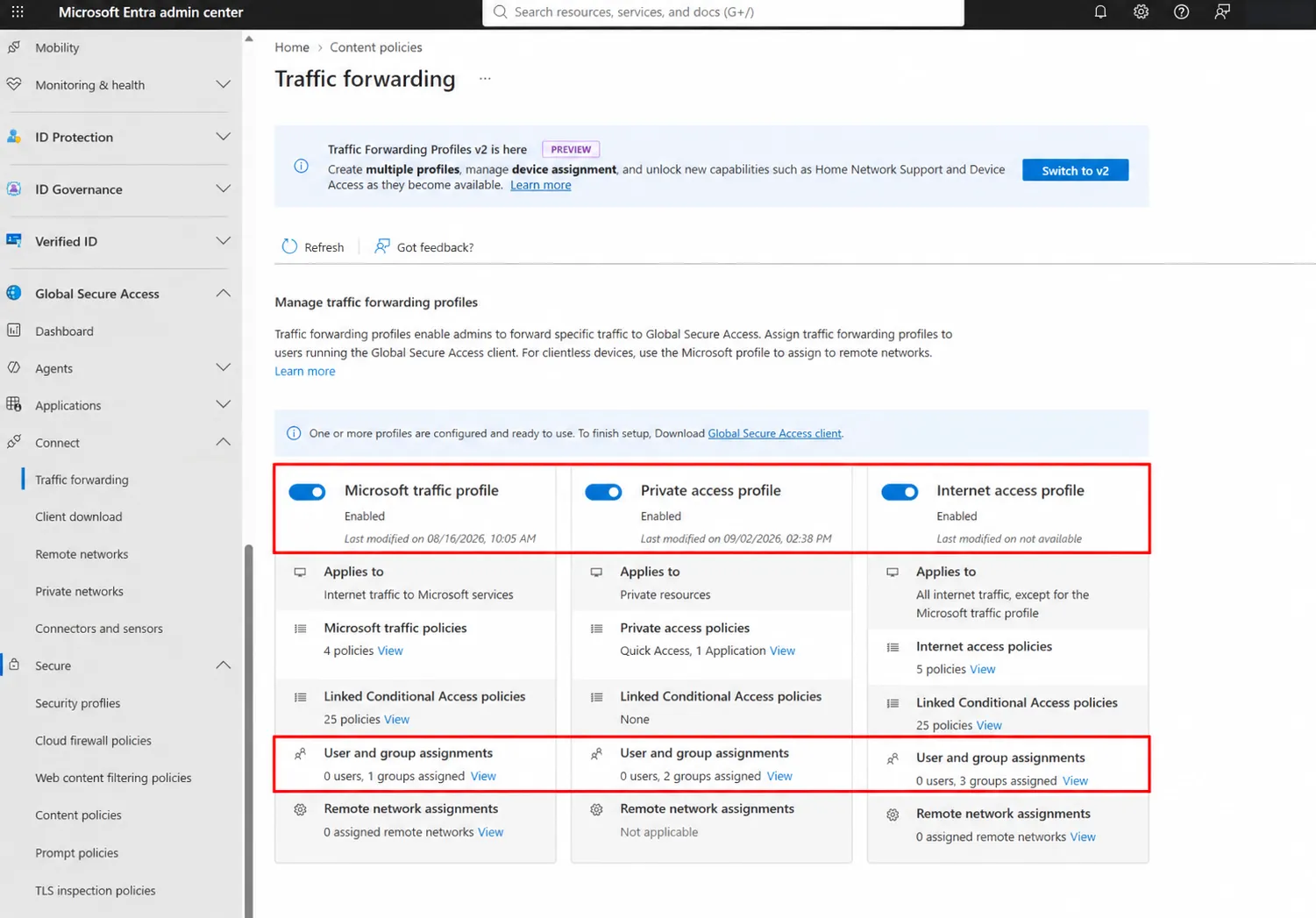
Figure 1: Microsoft, Private Access and Internet Access traffic profiles enabled in the test tenant, with their user and group assignment counts.
Prepare a small, repeatable test
Use the Windows 11 pilot from Part 1, signed in with the intended Microsoft Entra user. Keep the network and browser consistent across both tests.
Before collecting anything, write down:
- Client version, Windows version and test browser.
- Test start time and time zone.
- Whether a VPN or proxy is in use.
- The SharePoint site URL and the public website chosen for comparison.
- The expected behaviour based on the pilot’s current forwarding configuration.
For SharePoint, use a site the pilot user can already access, such as https://<tenant>.sharepoint.com/sites/<site>. Replace both placeholders with your own values.
For the public website, use https://www.example.com/, or an organisation-approved public site outside your Microsoft and Private Access definitions. Check the destination against the effective rules rather than relying on the site’s name.
Close existing browser windows after saving your work. A fresh browser launch makes it easier to associate new connections with the test. An InPrivate window can help separate browsing activity, but it doesn’t guarantee a new network connection if the browser is already running in the background.
I would run each test separately. A short capture with a known start time is easier to explain than ten minutes of mixed background traffic.
Read Advanced Diagnostics in context
Open Advanced Diagnostics from the client’s tray menu and approve elevation if prompted. Microsoft’s Advanced Diagnostics guide describes the available tabs and fields.
Overview: check the context first
Check the user, tenant, device, client version and forwarding profile information. Note when the profile was last checked. If these don’t describe the intended pilot, resolve that before interpreting traffic.
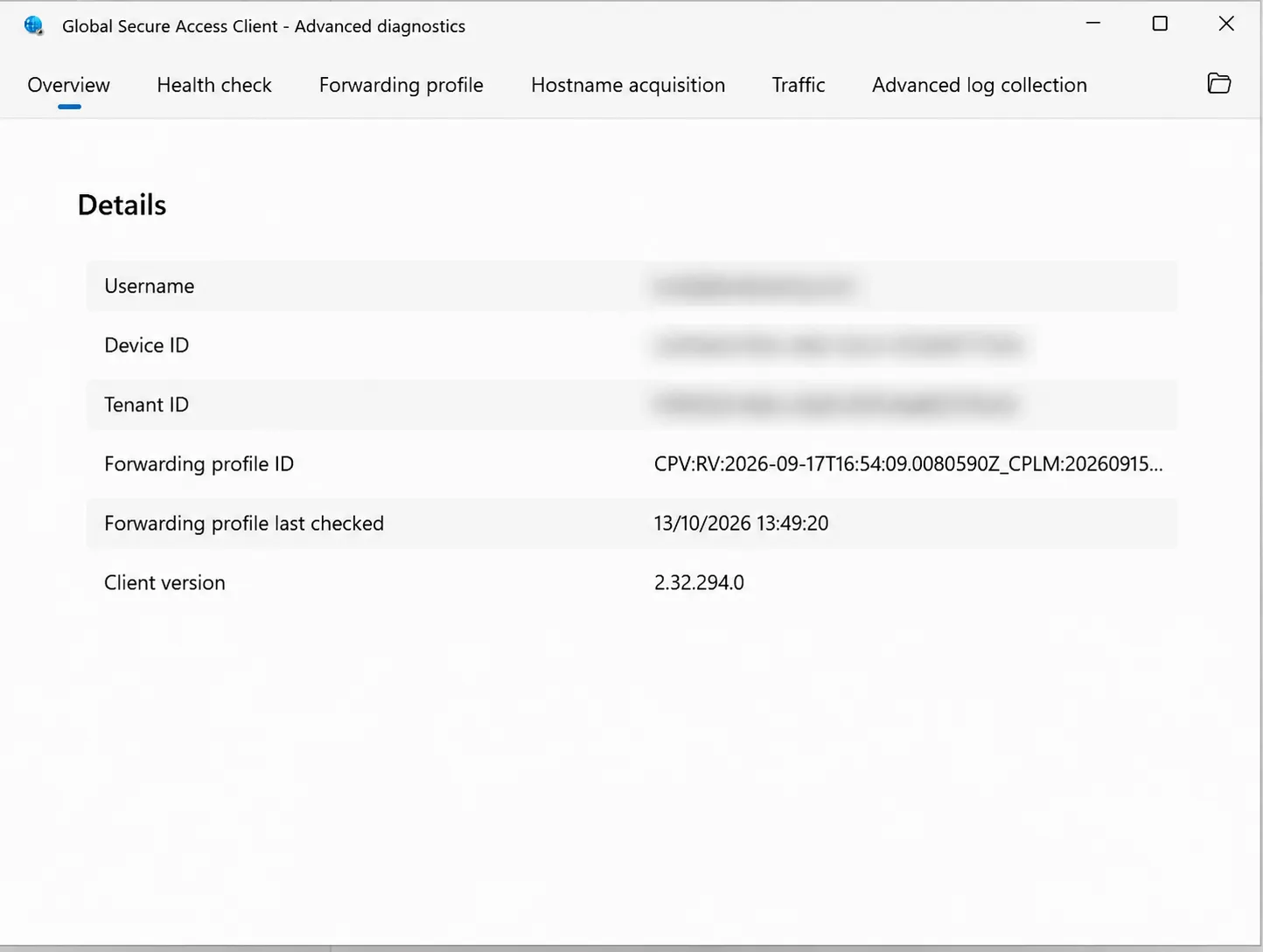
Figure 2a: Advanced Diagnostics Overview showing the installed client version and when the forwarding profile was last checked.
Health check: investigate dependencies
Run the health checks and work through the first failed check before moving down the list. Refresh after remediation. Microsoft documents checks for device identity, services, DNS and channel connectivity in the Health check guide.
In Part 1, an IPv4 is not preferred warning was discussed alongside working SharePoint forwarding. That observation doesn’t make the warning irrelevant. Read its guidance and assess the impact on the connection you’re testing. One successful connection doesn’t establish that every protocol or destination will work.
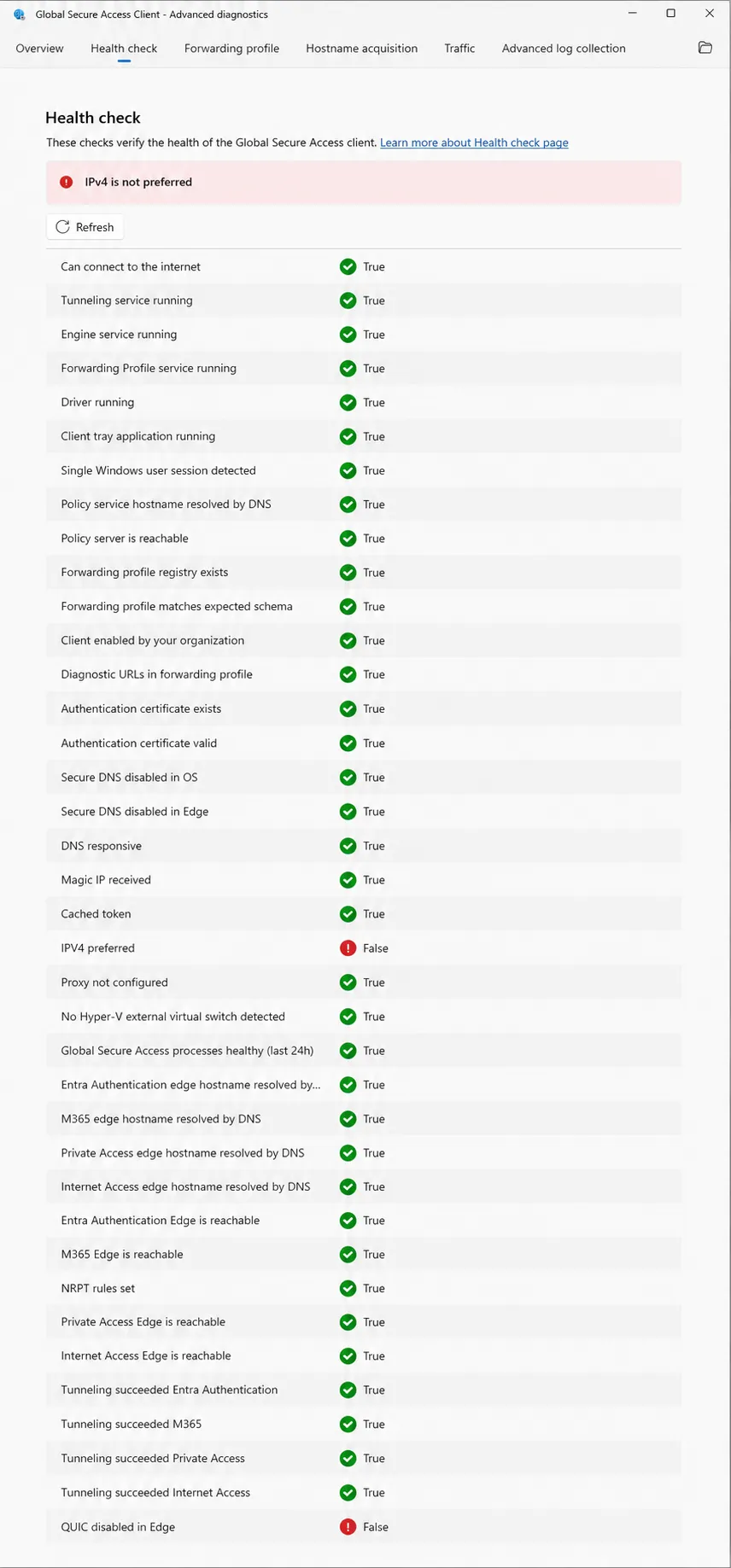
Figure 2b: Advanced Diagnostics health results, shown in two sections. The IPv4 preference and Edge QUIC checks return False, while the displayed channel tunnelling checks return True.
Forwarding profile: inspect the effective rules
Review destination, protocol, port, priority, action and Rule ID. Smaller priority numbers take precedence. Refresh details reloads cached data; it doesn’t force a policy download. Policy tester identifies an active rule for a supplied destination. See Advanced Diagnostics.
The Microsoft rules are based on defined FQDNs and IP ranges, grouped by workload. A Microsoft-owned hostname doesn’t automatically tell you which rule applies. Microsoft also documents that an explicit Microsoft-profile bypass continues to bypass acquisition even with Internet Access enabled. See the Microsoft traffic profile overview.
Traffic: inspect an actual connection
Use Start collecting, then generate the test traffic. Keep destination, process, time, Rule ID, channel, action and correlation information visible. Export CSV for later comparison. The diagnostics guide explains these fields.
A policy prediction and an observed connection answer different questions. I want both before explaining an unexpected result.
Test 1: repeat the SharePoint check
Previously observed: Part 1 showed a tunnelled SharePoint connection and Microsoft 365 forwarding rules.
Expected for this repeat test: A new connection matching a SharePoint forwarding rule should show Tunnel, with the Microsoft 365 channel. This is an expectation based on that configuration, not a newly captured result.
- Record the start time and confirm the pilot still receives the relevant Microsoft rules.
- Begin a fresh Traffic collection with no action filter. Starting with only Tunnel results could hide the behaviour you’re investigating.
- Launch the browser and visit the chosen SharePoint site. Open a page or document to generate activity.
- Find the site’s connection in the capture. Use its hostname, browser process and test time together rather than selecting the first browser row.
- Record the destination, protocol, port, action, channel and Rule ID, along with any available correlation identifier.
- Save the capture and screenshot the selected row with its relevant columns visible.
If the result is Tunnel, report that specific connection as forwarded. If it is Bypass, preserve it and investigate the rule. If there is no relevant row, repeat with a genuinely new connection before drawing a conclusion.
SharePoint can involve authentication and supporting destinations. Review them separately; don’t describe the whole browsing session as having one forwarding decision.
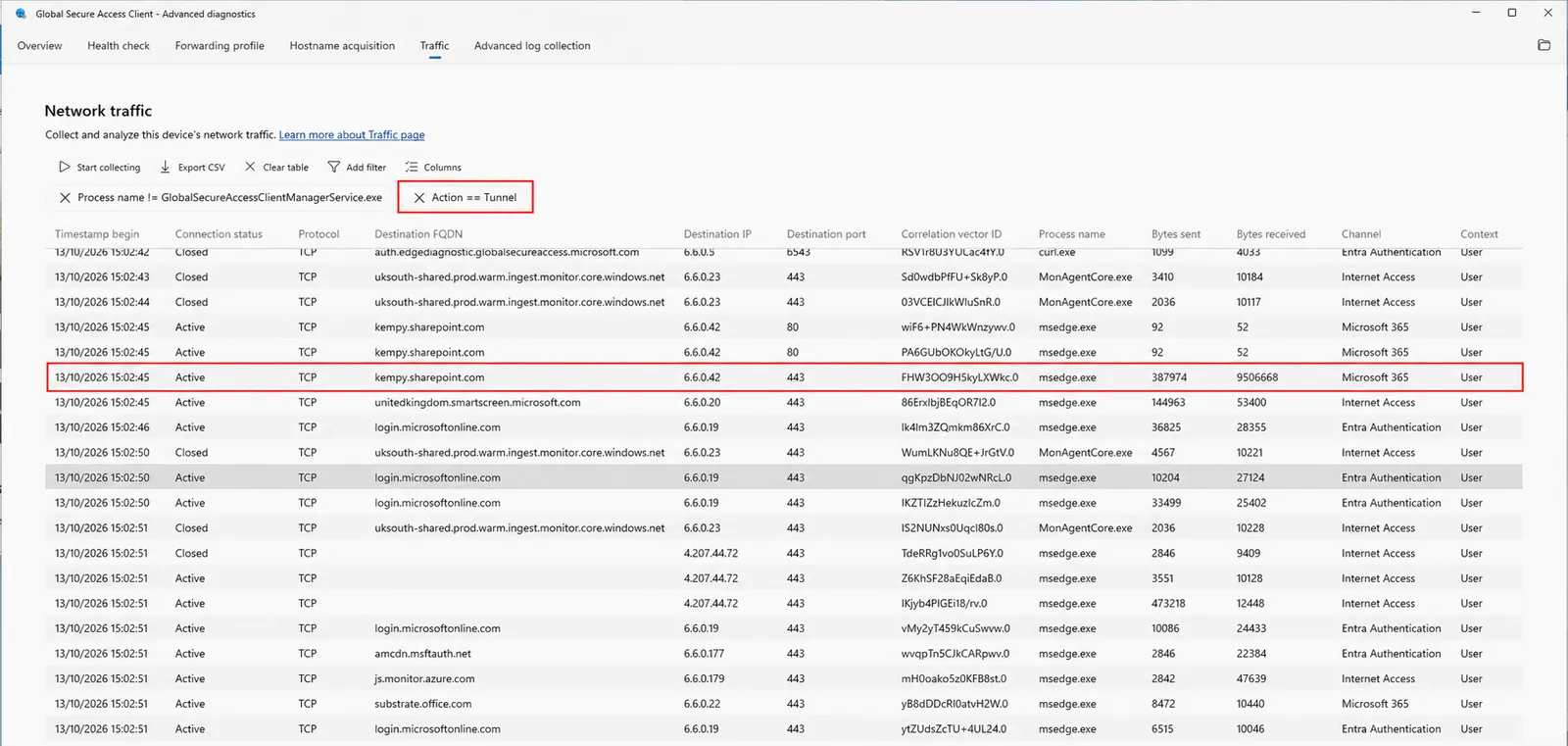
Figure 3a : A SharePoint Online connection from Microsoft Edge, tunnelled through the Microsoft 365 channel over TCP 443.
Test 2: compare an ordinary internet website
Planned test: Browse to the selected public website while collecting traffic. We haven’t captured this result yet.
The expected outcome depends on configuration:
| Pilot configuration | Expected behaviour for an eligible public destination |
|---|---|
| Microsoft profile applies; Internet Access doesn’t apply | The destination isn’t acquired through Internet Access and uses the device’s existing network path. |
| Internet Access applies and a forwarding rule matches | The connection should be tunnelled through the Internet Access channel. |
| An effective bypass rule matches | The connection should bypass Global Secure Access acquisition. |
These expectations follow the profile model and Microsoft bypass behaviour. They aren’t guarantees about every connection a web page opens.
- Note the Internet Access assignment and inspect the rules relevant to the chosen website.
- Start a separate capture and record the time.
- Launch a fresh browser session and open the website once.
- Identify its actual destination connections and compare them with your expectation.
- Preserve any relevant rows and their rule information. Check redirects or additional hosts individually.
- Save the capture before changing any configuration.
Don’t assume the Traffic tab is a complete inventory of every direct connection on Windows. If unacquired traffic doesn’t produce a useful row, an empty table isn’t evidence of Bypass. Confirm the effective acquisition rules and, if necessary, use a separate network trace to establish the path. Microsoft’s Windows troubleshooting guidance provides the wider diagnostic approach.
For a Tunnel-versus-Bypass comparison, use an actual Bypass row if one is present. If it isn’t, publish the observed outcome and explain the visibility limit. Don’t create a bypass rule merely to make the illustration fit.
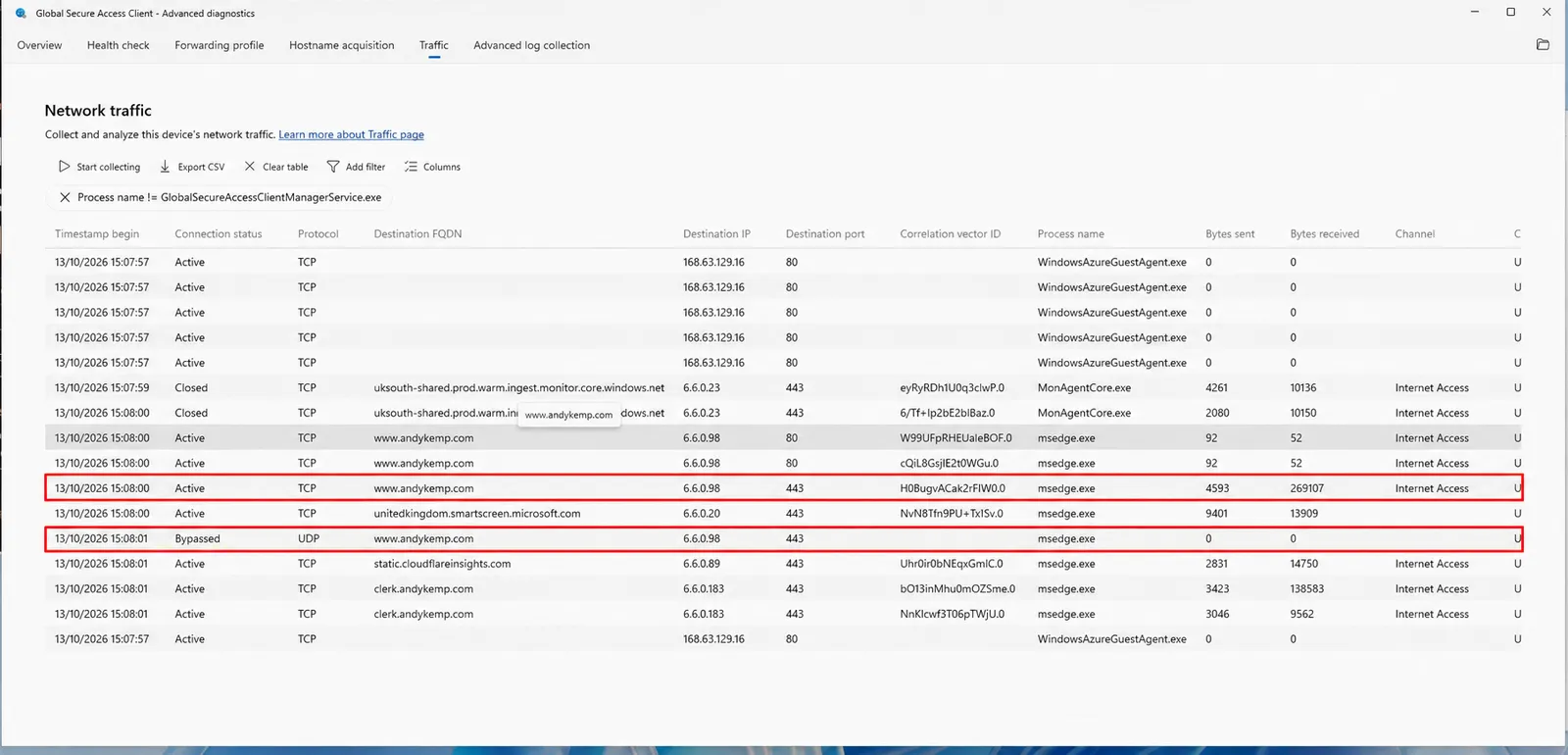
Figure 3b : Connections to www.andykemp.com from Microsoft Edge. The TCP 443 connection uses the Internet Access channel, while a separate UDP 443 connection is marked Bypassed with no bytes sent or received.
Follow a connection back to its rule
When a result is unexpected, start with one connection. Write down what you expected and what the evidence shows.
Return to the effective forwarding rules and look for the captured Rule ID. Compare the destination, protocol and port, then inspect priority and action. Use Policy tester as an additional check against the same destination. These capabilities are documented in Advanced Diagnostics.
My working note would look like this:
| Question | Evidence to record |
|---|---|
| What did I request? | The URL entered and test time. |
| What connection was opened? | Captured hostname/IP, protocol, port and process. |
| What decision was recorded? | Actual action and channel, where present. |
| Which rule explains it? | Captured Rule ID and corresponding effective rule. |
| Does the configuration agree? | Rule action and priority, profile scope and freshness. |
Keep the profile evidence from the same test window. A portal change after the capture can otherwise leave you comparing traffic with a different set of rules.
If the hostname or address looks unfamiliar, investigate resolution before assuming the wrong destination was contacted. The client has a Hostname acquisition view for investigating FQDN acquisition; consult the diagnostics guide when you need that additional detail.
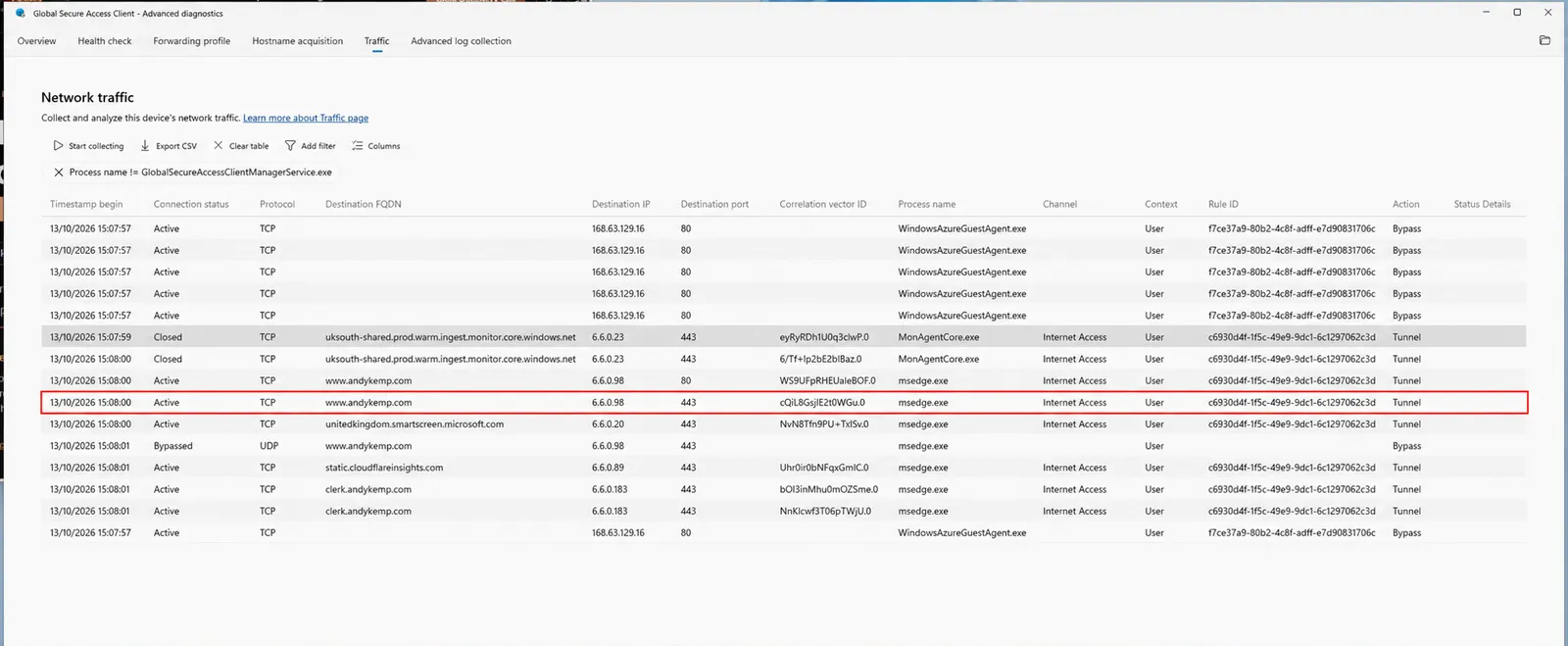
Figure 4: A TCP 443 connection to www.andykemp.com showing the Internet Access channel, Tunnel action and Rule ID. The Rule ID provides the link to the corresponding rule in the client’s Forwarding profile.
What Tunnel and Bypass prove
Tunnel means the client sent that connection to Global Secure Access. Bypass means it used the device’s network path without client intervention. Block can also appear when hardening applies during service unreachability. These are client forwarding outcomes; see Advanced Diagnostics.
Tunnel doesn’t, by itself, prove that SharePoint authorised the user, that a web filtering policy allowed the request, or that every related connection followed the same path.
Bypass can be intentional. Check whether it is the expected forwarding decision, an exclusion, or behaviour associated with service connectivity and hardening. A page loading successfully tells you that the application worked; it doesn’t explain its route.
That distinction is useful in a customer discussion. “We captured this connection and matched its decision to this rule” is a more defensible statement than “the icon was green, so everything was protected”.
Troubleshoot from the evidence
I wouldn’t start by reinstalling a client that is already producing useful diagnostics. First identify which stage disagrees with your expectation.
| Symptom | Checks to make next |
|---|---|
| Expected rules are missing | Profile enabled, correct user/device and Windows scope, Windows sign-in identity, profile retrieval and health results. |
| Rules exist but the capture is empty | Collection started before browsing, filters removed, new connection created and actual destination identified. |
| SharePoint unexpectedly bypasses | Exact destination, protocol and port; matching rule action; exclusions; policy freshness and service health. |
| Public internet traffic bypasses | Whether Internet Access applies at all, plus explicit bypasses and acquisition limitations. |
| Tunnel is recorded but the application fails | Application error, authentication and access policies, supporting endpoints and service-side evidence. |
| Behaviour differs between networks | VPN, proxy, DNS and network restrictions; repeat the same small test on each network. |
For missing profiles, compare assignments with the Windows sign-in context. Microsoft’s assignment guidance explains how scope is evaluated.
For DNS-related failures, review Secure DNS in Windows and the browser. Microsoft documents that DNS over HTTPS prevents the DNS visibility required for FQDN acquisition. Resolve relevant health failures and retest rather than making several network changes at once. See Health check troubleshooting.
Also review the current known limitations for IPv6, QUIC and VPN coexistence. A test using a different protocol or network path may behave differently even when the hostname looks the same.
For a persistent problem, collect diagnostic logs while reproducing it and retain the test time and connection details. Use the Windows troubleshooting guide for escalation. Review captures before sharing them: they can contain identity, destination and network information.
Optional: compare with service-side traffic logs
Client evidence is enough to discuss the forwarding decision for the captured connection. Service-side evidence adds another view of what happened after traffic reached Global Secure Access.
Open Global Secure Access > Monitor > Traffic logs in the Entra admin centre, using an account with the required log-reading permissions. The feature is documented as preview. Filter by the pilot user, destination and test time, allowing for time-zone differences and ingestion delay. See Global Secure Access traffic logs.
Use a shared correlation identifier where available; otherwise describe the match as a comparison using time, identity and destination. Don’t assume a client Flow ID and a portal Connection ID are interchangeable.
The portal’s Allowed or Denied action describes service-side access handling. It isn’t the same decision as the client’s Tunnel or Bypass. One connection can also have several transactions, so don’t expect one browser action to produce one log row. The traffic logs guide explains the connection and transaction views.
A directly bypassed connection isn’t expected to have a corresponding service traffic record for that path. Conversely, failure to find a portal record alone doesn’t prove bypass: check filters, permissions, timing and available fields first.
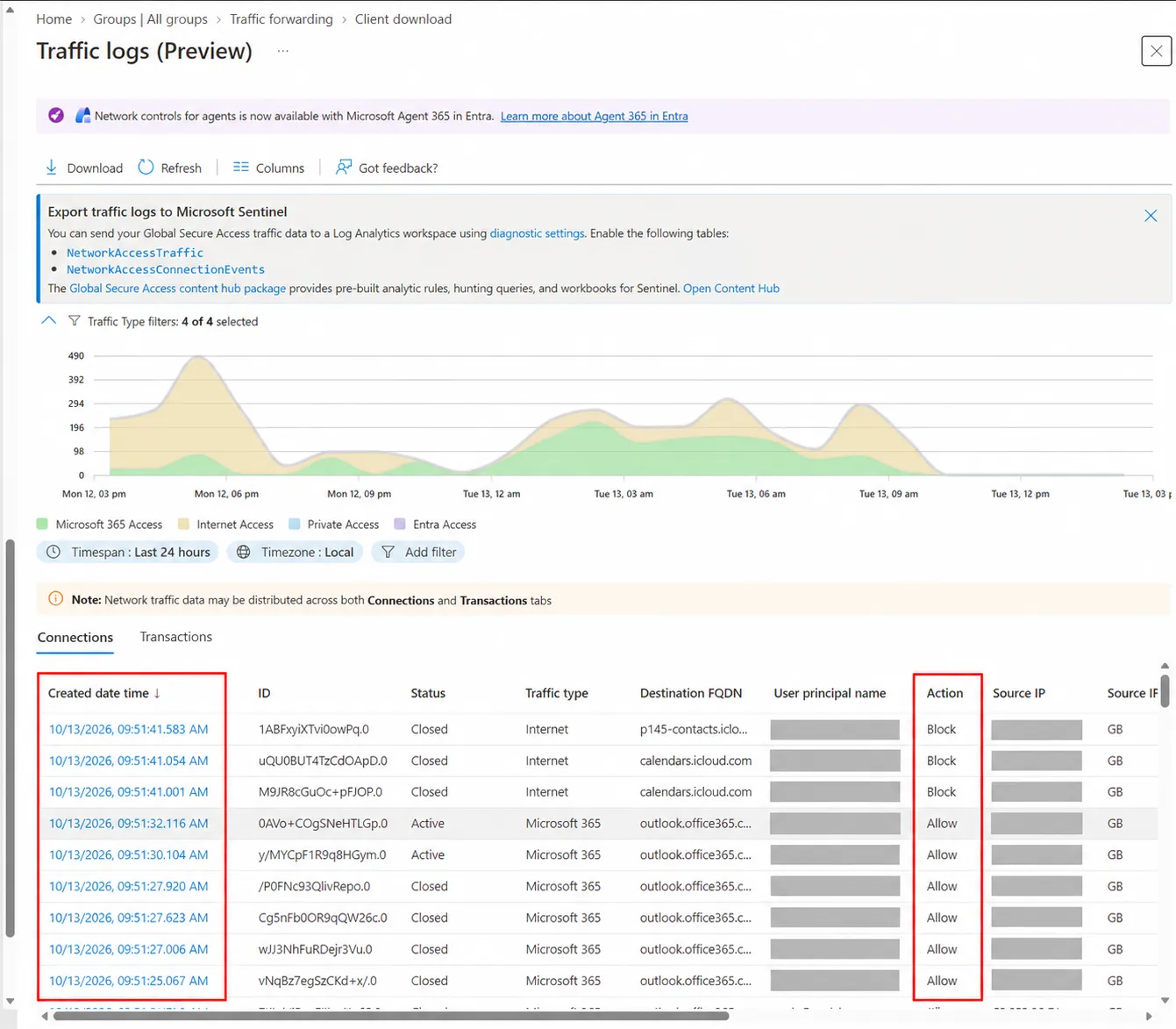
Figure 5: Global Secure Access service-side traffic logs showing Microsoft 365 and Internet traffic with Allow and Block actions. These records illustrate the service view; they have not been correlated with the client connections shown earlier.
In this lab, service-side traffic records were available, but I couldn’t locate a matching record for the captured website connection. Figure 5 therefore illustrates the available logs rather than confirming that specific connection end to end.
What I would retain from the pilot
For each test, keep the expectation, test time, effective rules and actual connection evidence together. Record a result as inconclusive if the capture doesn’t support an explanation.
We already know that the Part 1 pilot produced Microsoft rules and a tunnelled SharePoint connection. The next step is to repeat that check, compare it with a public destination and explain the decisions using the configuration actually delivered to the device.
Once you can follow a connection back to a rule, the diagnostics become useful beyond this lab. You have a repeatable way to investigate a user’s report, explain an intentional bypass and show precisely what you have verified before expanding the deployment.
References
- Global Secure Access traffic forwarding profiles
- Microsoft traffic profile overview
- Assign users and devices to traffic forwarding profiles
- Windows client Advanced Diagnostics
- Windows client Health check troubleshooting
- Troubleshoot Windows client issues
- Current known limitations
- Global Secure Access traffic logs (preview)
Comments
No comments yet — be the first to leave one below.
Published — it will appear for everyone in a couple of minutes once the site updates.