Windows LAPS on Windows 11: Designing Local Admin Properly
In Part 0, I argued that Windows LAPS is about more than rotating a password.
That becomes particularly important on Windows 11.
With Windows 11 24H2 and later, Windows LAPS can use Automatic Account Management to create and manage a local administrator account for us.
That removes one of the awkward parts of traditional LAPS deployments.
But it also means we have a design decision to make.
Which local administrator account should actually exist?
Should we manage the built-in Administrator?
Should Windows LAPS create a dedicated account?
Should that account always be enabled?
Should its name be randomised?
And perhaps more importantly:
What happens to every other account already sitting in the local Administrators group?
Because Windows LAPS can manage its account beautifully while leaving an entirely different local privilege problem untouched.
The goal isn’t to deploy LAPS. The goal is to have a deliberate local administrator model.

Manual account management is the model many of us already know
Before Windows 11 24H2, Windows LAPS could manage the password of an account, but it didn’t create a custom account for us.
If we wanted to manage the built-in Administrator, that was straightforward.
If we wanted a dedicated account such as:
LocalAdmin
we first had to make sure that account existed.
That might mean creating it using:
- the Accounts CSP
- an Intune remediation or script
- a provisioning process
- an operating system image
- another management mechanism
Windows LAPS could then take responsibility for the password.
But the account itself was still our responsibility.
That is what Microsoft now calls Manual Account Management.
Manual mode still exists and is still useful.
It gives us greater control over the account configuration when we genuinely need it.
But for a straightforward managed local administrator, Windows 11 24H2 gives us another option.
Automatic Account Management changes the model
Automatic Account Management is supported on Windows 11 24H2 and later.
When enabled, Windows LAPS can take responsibility for the account as well as its password.
We can configure it to:
- manage the built-in Administrator account
- create and manage a new custom administrator account
- configure the account name
- enable or disable the account
- optionally randomise the account name
For a custom account, this means we no longer need a separate script, CSP or provisioning process just to create the account before LAPS can manage it.
Windows LAPS creates it.
Windows LAPS places it in the local Administrators group.
Windows LAPS manages its password.
And Windows LAPS protects aspects of the account configuration from external tampering.
That is a significant improvement.
But it still leaves us with the first architectural decision.
Built-in Administrator or a dedicated LAPS account?
Automatic Account Management can target either.
Technically, both are supported.
Architecturally, I think there is now a fairly compelling default for modern Windows 11 deployments:
Leave the built-in Administrator disabled and let Windows LAPS create a dedicated managed account.
Importantly, this isn’t just my preference.
Microsoft currently recommends using Automatic Account Management wherever possible and recommends creating a custom managed account while leaving the built-in Administrator unused and disabled.
There will always be exceptions.
But for a new Windows 11 design, that gives us a sensible starting position.
Why not just use the built-in Administrator?
The built-in Administrator is a special account.
Renaming it doesn’t change that.
Its well-known RID means that changing the visible account name doesn’t make it some mysterious, undiscoverable administrator.
That doesn’t mean managing it with LAPS is inherently insecure.
Windows LAPS can absolutely manage its password.
But if we can leave the built-in account disabled and create a purpose-specific account whose lifecycle is controlled by Windows LAPS, I think that gives us a cleaner administrative model.
Instead of repurposing something that already exists, we are defining exactly which local recovery or support account is intended to exist.
That distinction becomes useful operationally as well.
If I inspect a device and see the Windows LAPS-managed account, I know why it exists.
If I see another unexpected local administrator, I have something to investigate.
The account can start disabled
There is another useful capability in Automatic Account Management that I think deserves more attention.
The managed account doesn’t have to be permanently enabled.
In fact, the default for AutomaticAccountManagementEnableAccount is disabled.
Microsoft specifically calls out maintaining the managed account in a disabled state as an additional security option because a disabled account can’t be targeted by password spraying or similar authentication attacks.
Whether that makes sense operationally depends on how you intend to use the account.
If this is your emergency local access mechanism, you need an operational process that accounts for its state.
But the important point is that:
LAPS-managed doesn’t automatically have to mean permanently available for interactive sign-in.
That gives us another architectural decision to make rather than simply accepting a default configuration.
What about randomising the account name?
Automatic Account Management can also randomise the name of the managed account.
When enabled, Windows LAPS appends a random six-digit suffix to the configured account-name prefix each time the password rotates.
For example, a prefix such as:
WLapsAdmin
might result in a managed account name changing over time.
That can reduce the predictability of the account name.
But I would be careful about describing this as a major security boundary.
We already have a highly complex, unique and regularly rotated credential.
The account is under LAPS control.
Its configuration is protected.
And access to the password should itself be tightly controlled.
Randomising the username can be another layer.
It shouldn’t be the thing we rely on to make the account secure.
An unpredictable account name can reduce exposure. It doesn’t replace credential security or privilege management.
For some environments I would enable it.
For others, having a predictable account name may make support and recovery procedures simpler.
Again, the right answer comes from the operating model rather than simply switching on every available feature.
Automatic management also protects the account
Automatic Account Management isn’t simply an account-creation feature.
Windows LAPS takes control of the account configuration.
When automatically managed, Windows configures the account as an administrator, ensures relevant password settings are appropriate, and marks the account as being controlled by Windows LAPS.
It also expands protection against external tampering.
Attempts by other tools, scripts or policies to modify or delete the automatically managed account can be rejected and logged.
This has an important practical consequence:
Don’t create another policy that tries to manage the same account.
If Windows LAPS owns the account, let Windows LAPS own it.
That includes thinking carefully about local group-management policies.
Microsoft has specifically integrated Automatic Account Management with supported local-group policies so that policies intended to clean up membership of the Administrators group don’t inadvertently remove the LAPS-managed account.
That makes it much easier to build a deliberate model.
And that brings us to the bigger issue.
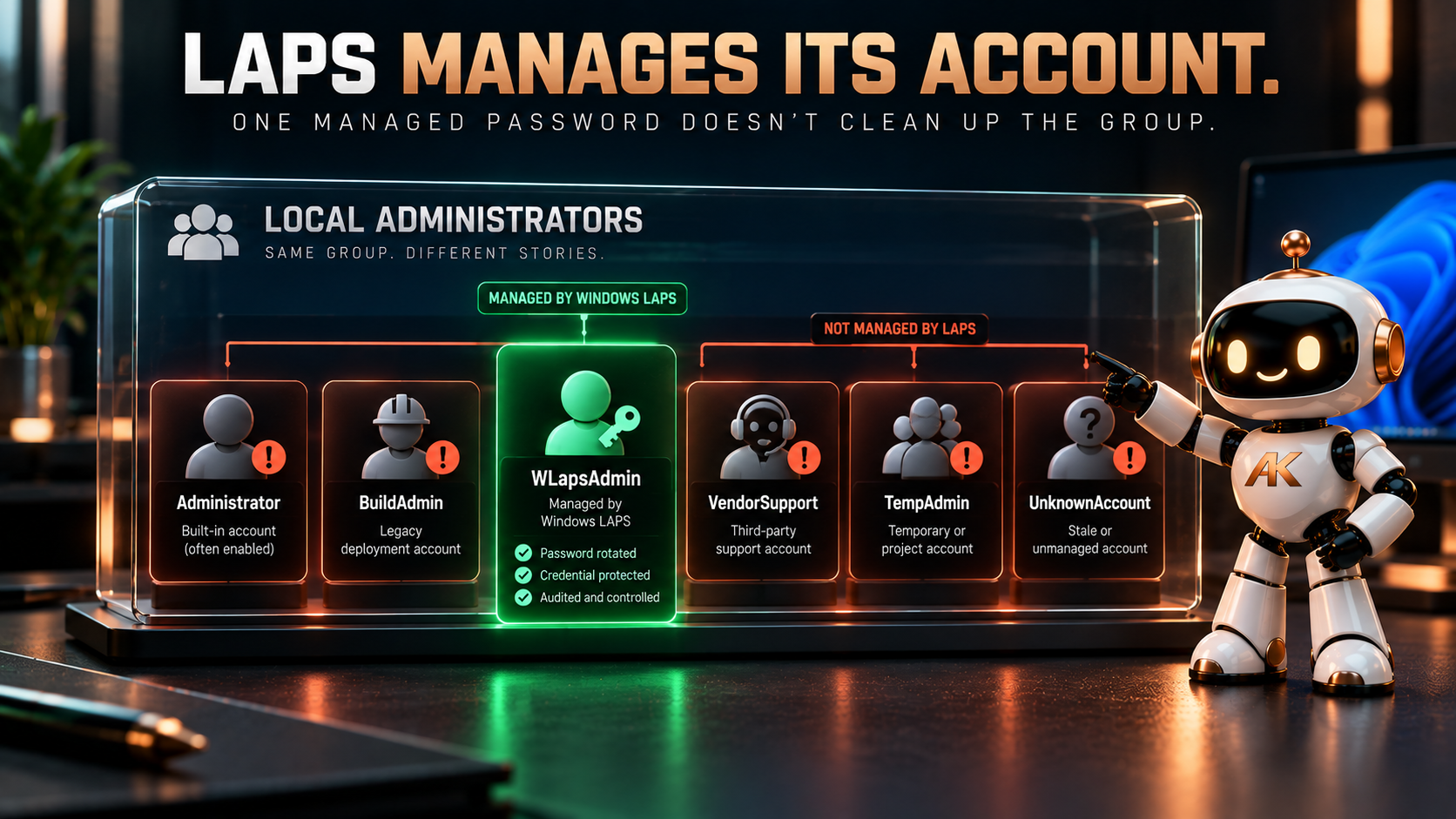
LAPS only manages its account
This is probably the most important point in this entire article.
Suppose we deploy Automatic Account Management.
Windows LAPS creates:
WLapsAdmin
It gives it a strong password.
The password is rotated.
The credential is backed up securely.
Access to that credential is controlled.
Everything is green in Intune.
Excellent.
Now run:
Get-LocalGroupMember -Group "Administrators"
What else is there?
Perhaps you find:
Administrator
BuildAdmin
DesktopSupport
VendorSupport
TempAdmin
an account created by an old deployment script
or something nobody immediately recognises.
Windows LAPS hasn’t magically fixed any of those.
It is managing its target account.
That is why I don’t think a successful Windows LAPS deployment should be considered synonymous with having local administrator access under control.
Design the Administrators group
For a new Windows 11 deployment, I would start by defining the desired state of the local Administrators group.
Not by asking:
What should our LAPS account be called?
Instead:
Who or what should be capable of obtaining local administrative privilege on this device?
Perhaps the answer is:
- the Windows LAPS-managed recovery account
- explicitly approved administrative identities or groups
- an endpoint-management mechanism such as Endpoint Privilege Management, where appropriate
And nothing else.
The exact answer will depend on the environment.
But it should be an answer.
Local administrator membership shouldn’t simply be the accumulated history of everything that has ever provisioned the device.
That means Windows LAPS needs to sit alongside controls that manage local group membership.
On Intune-managed Windows devices, that might include the Local Users and Groups policy through the Policy CSP.
The important thing is that we establish a desired state.
LAPS manages the credential.
Something else governs who belongs in the group.
Together, those controls start to give us an actual local privilege design.
Autopilot is where this gets particularly useful
This becomes especially interesting for new Autopilot deployments.
Historically, it has been easy for local administrator accounts to creep into the provisioning process.
A build script creates one.
An application deployment creates another.
A technician account gets left behind.
A provisioning process adds something to Administrators because it was needed during deployment.
Then LAPS is deployed afterwards and everyone assumes local admin has been solved.
With Windows 11 24H2 and Automatic Account Management, we have an opportunity to make the desired state much cleaner.
A newly provisioned device can arrive with:
Built-in Administrator
Disabled.
Dedicated Windows LAPS account
Created and controlled by Windows LAPS.
Administrators group
Explicitly governed.
End user
Standard user, unless there is a documented reason otherwise.
That is a much stronger starting point than creating several local accounts during provisioning and trying to tidy them up later.

What if the user needs admin rights?
This is another place where I think LAPS sometimes gets used for the wrong problem.
If a user regularly needs elevated privilege to perform part of their job, handing them the Windows LAPS password isn’t really an elegant privilege-management model.
LAPS is excellent for scenarios such as:
- recovery
- break/fix
- support
- situations where normal identity-based administration isn’t available
It gives us a unique, rotated credential for that particular device.
But it isn’t a replacement for designing how users or administrators should normally elevate.
If somebody needs routine elevation, we should design that requirement separately.
That might involve dedicated administrative identities, controlled group membership, Endpoint Privilege Management or another privileged-access mechanism depending on the use case.
The LAPS account should not quietly become:
The password everybody in support uses whenever they need admin.
If that happens, we’ve rotated the credential without really solving the privilege model.
And who can retrieve the password?
Even with the perfect account configuration, there is another side to the design.
Who can retrieve the LAPS credential?
If the password is backed up to Microsoft Entra ID, access to retrieve it should be treated as privileged access.
The fact that every device has a unique password dramatically reduces the blast radius compared with a shared local administrator password.
But retrieving that password still gives somebody administrative access to the endpoint.
That means the retrieval model matters.
Who has permission?
Is retrieval audited?
Should support staff have access to every device?
Should access be scoped?
What happens after the password has been used?
Those are operational questions, and we’ll go much deeper into them in Part 4.
For now, the important thing is recognising that:
Protecting the password in the directory is only useful if access to retrieve it is also controlled.
So what would I deploy on Windows 11?
For a new, modern Windows 11 deployment, my starting design would generally be:
Windows 11 24H2 or later
Use Automatic Account Management.
Dedicated custom LAPS account
Let Windows LAPS create and own it.
Built-in Administrator
Leave it disabled.
Managed account name
Use a deliberate naming convention. Consider randomisation where it adds value without unnecessarily complicating operations.
Managed account state
Decide whether the account genuinely needs to remain enabled rather than assuming that it does.
Local Administrators group
Explicitly manage its membership.
End users
Standard users unless there is a justified requirement for administrative privilege.
Credential retrieval
Delegate deliberately and audit access.
Routine elevation
Solve separately rather than treating the LAPS account as the everyday elevation mechanism.
That isn’t the only valid Windows LAPS architecture.
But it gives us a deliberate starting point.
And that’s the important part.
LAPS should leave you with fewer unknowns
A good Windows LAPS deployment shouldn’t just give us a password we can retrieve.
It should make the endpoint easier to reason about.
I should be able to look at a Windows 11 device and explain:
Why does this local administrator account exist?
Who manages it?
Who can retrieve its credential?
Why is it enabled?
What other identities can become local administrators?
How is membership of Administrators controlled?
And what happens when somebody actually uses the recovery credential?
If we can’t answer those questions, enabling LAPS hasn’t finished the job.
The target state isn’t “LAPS deployed”. It’s “local administrative access designed and controlled”.
In Part 2, we’ll look at the next architectural decision:
Who should configure Windows LAPS?
For Windows 11 that increasingly means deciding between Intune and Group Policy, particularly in hybrid environments where both management planes may still be present.
And as we’ll see, the fact that one policy can win doesn’t mean two policies should be competing in the first place.
Microsoft Learn references
Documentation checked on 30 September 2026. Microsoft’s documentation below describes the Windows LAPS account-management modes, Automatic Account Management settings and Intune capabilities discussed in this article. The local administrator model and architectural recommendations are my own design guidance.
Comments
No comments yet — be the first to leave one below.