You’ve built an Exchange server.
Maybe it’s a lab. Maybe it’s a migration. Maybe it’s the last Exchange server you keep for hybrid management.
The install is the easy part. Then come the fiddly bits:
- set the internal and external URL on every virtual directory: OWA, ECP, EWS, ActiveSync, OAB, MAPI, Outlook Anywhere and the Autodiscover SCP
- get a certificate that covers every one of those names
- put it on every server and assign it to the right services
- change the default accepted domain from the AD domain to the real one, and update the email address policy to match
- and, eventually, get rid of that
ad.contoso.comorcontoso.localdomain nobody needs
None of it is hard.
But it’s work you do once every year or two. So every time, you’re back in the docs, looking up the cmdlets, working out the order, and hoping you haven’t missed a virtual directory.
I got tired of doing that homework. So I built a tool to do it for me.
What usually goes wrong
Exchange certificates tend to go wrong in the same few ways:
- one expires because nobody saw it coming
- a renewal misses a name that a virtual directory still uses
- the new certificate lands on one server but not the other
- a hybrid send connector is still pinned to the old certificate, and mail to Microsoft 365 quietly stops
Accepted domains have their own trap. You can’t just remove the old default domain: you have to make another one the default, change the address policy, apply it, and deal with the addresses people already have. Get the order wrong and Exchange says no, or worse, people’s primary address changes when you didn’t expect it to.
Exchange Certificate Manager
Exchange Certificate Manager is a free Windows app for Exchange Server 2016, 2019 and Subscription Edition. It puts certificates, URLs and accepted domains on one screen, and does each job in the right order.
It runs as you. There’s no app registration, no stored password, and nothing to install on the Exchange servers. It talks to the standard Exchange PowerShell endpoint over Kerberos, one cmdlet at a time, and every command it runs is shown in the log panel and written to disk.
So you can see exactly what it did. And if you want to, you can learn the cmdlets from it.
The screenshots below are from the app’s demo mode, with a made-up Contoso organisation.
Connect
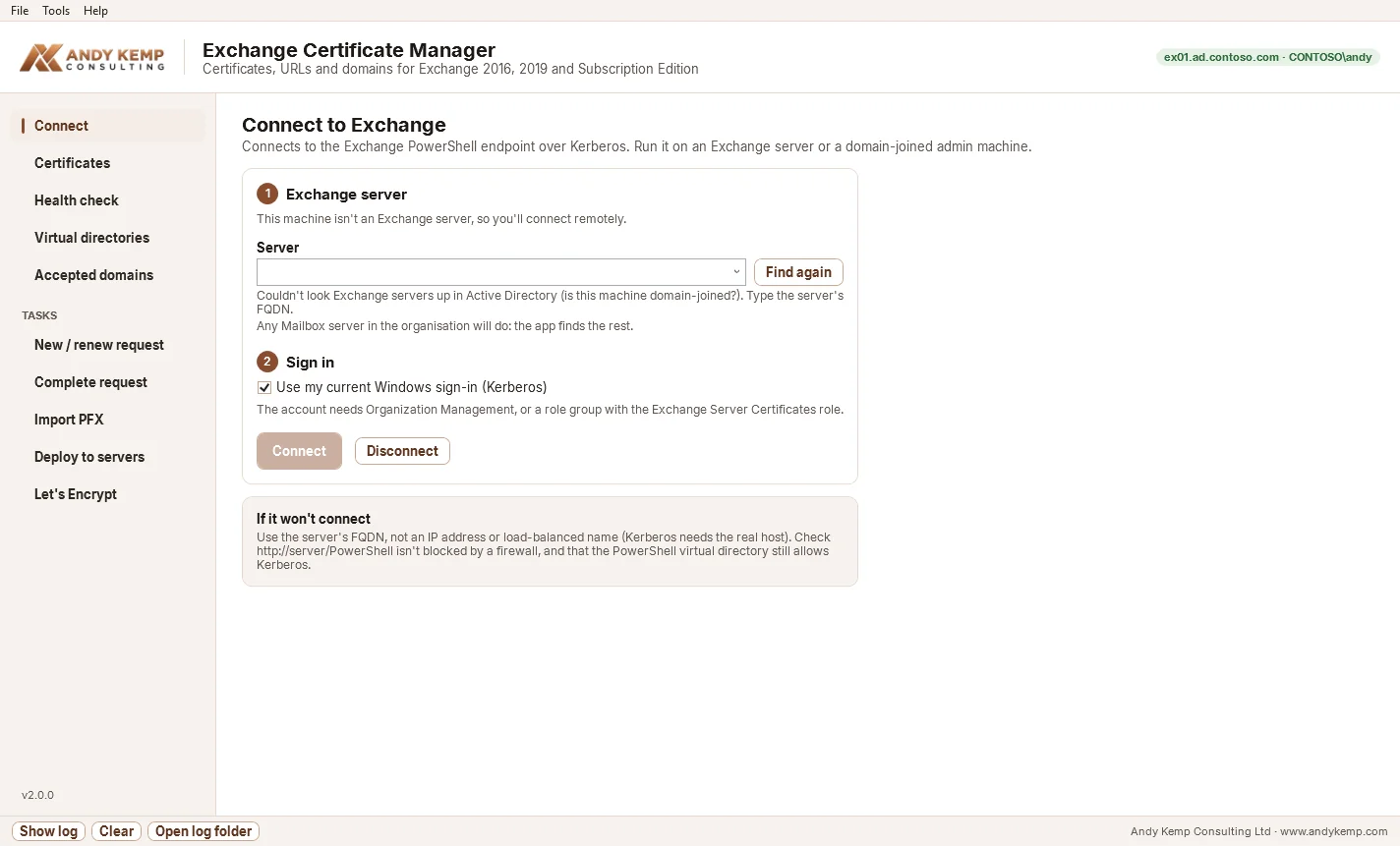
It finds your Exchange servers in Active Directory and lists them with their version and AD site, this site first. Pick one and connect as yourself.
Set every URL in one go
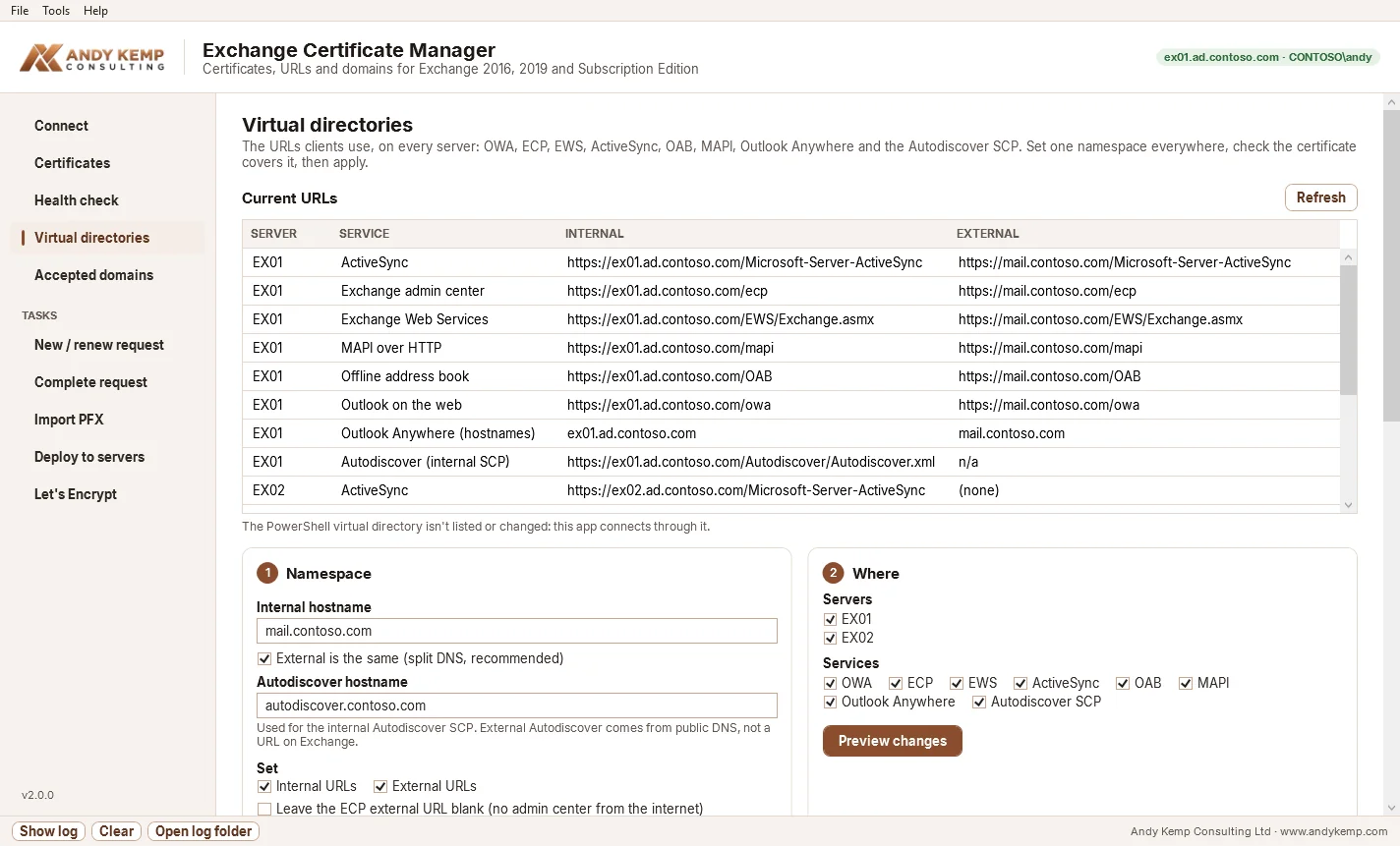
The Virtual directories page shows every internal and external URL on every server. Type your namespace, say mail.contoso.com, and it works out every URL from it.
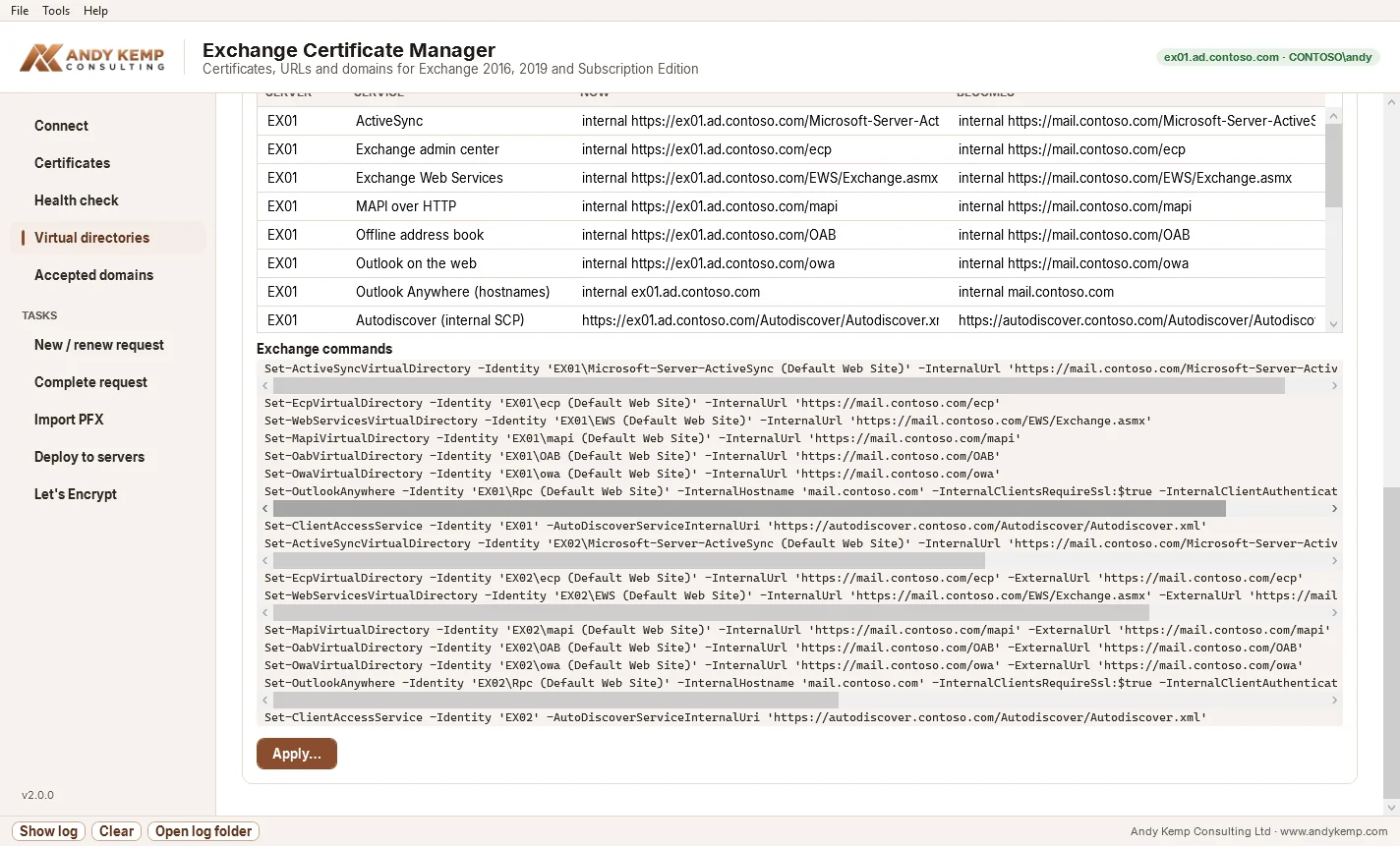
Before anything changes, you get a preview of every command, and a check that the certificate covers the names. The PowerShell virtual directory is never touched.
Certificates
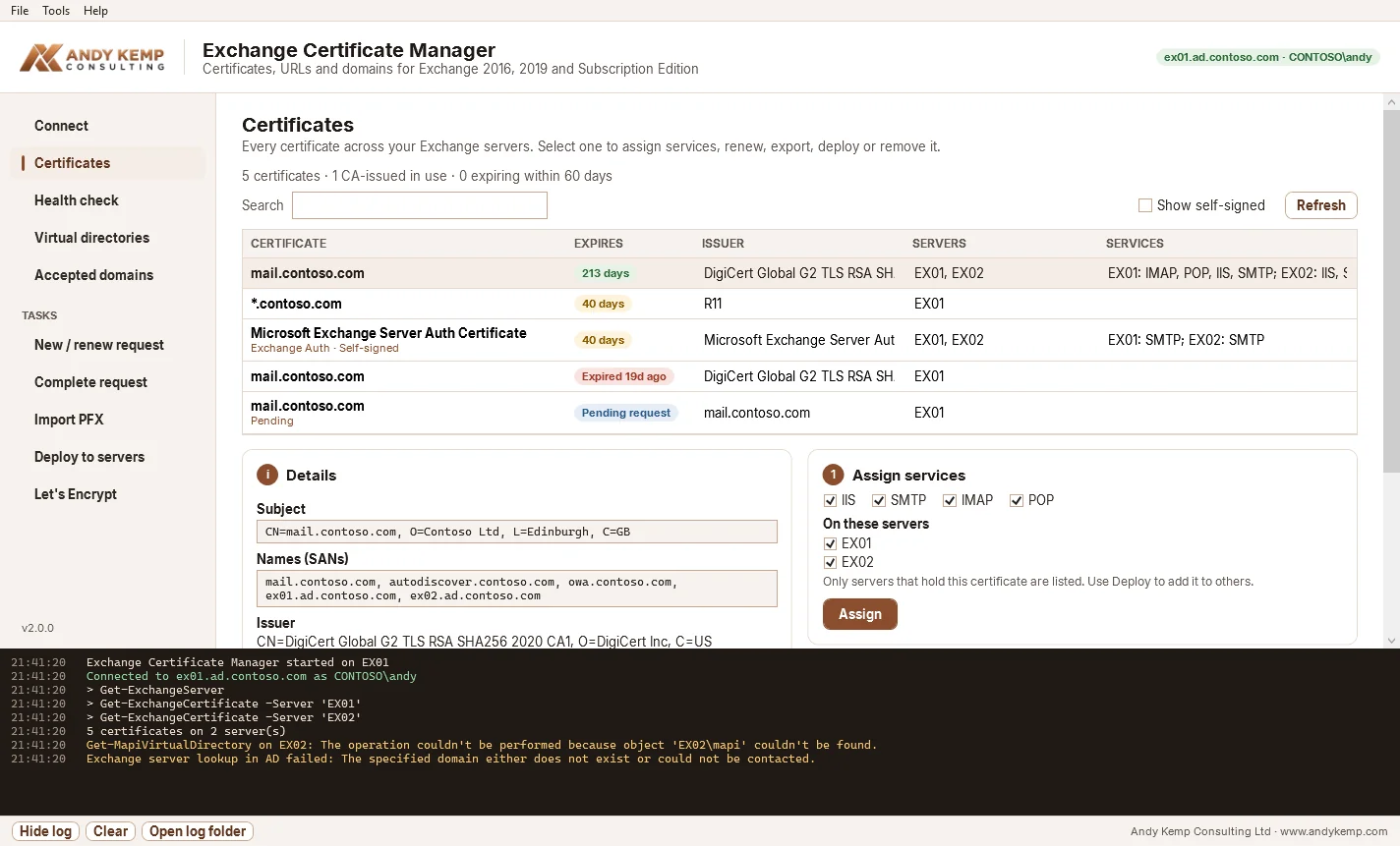
Every certificate on every server, grouped by thumbprint, with its expiry, issuer, the servers that have it and the services each one uses it for.
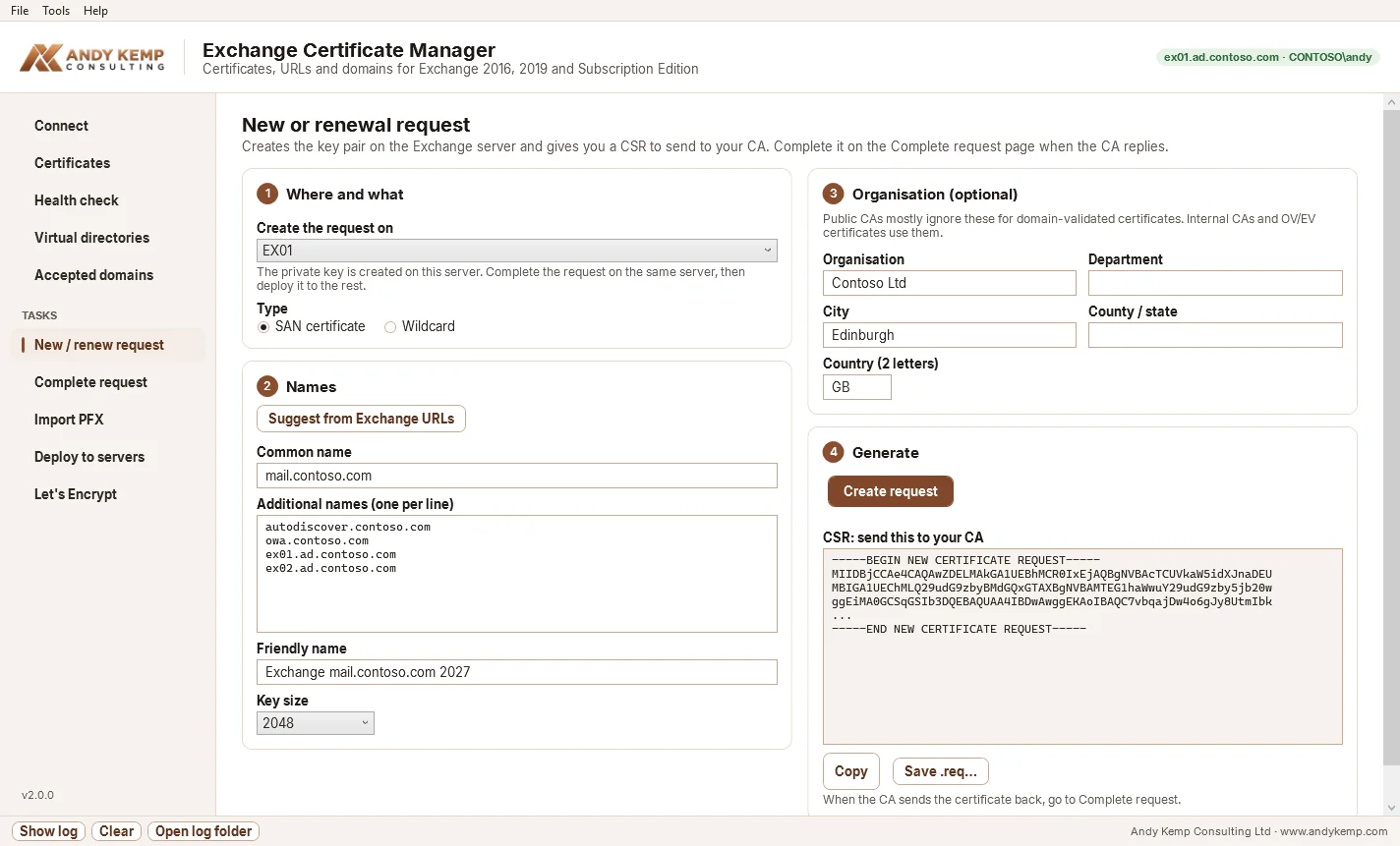
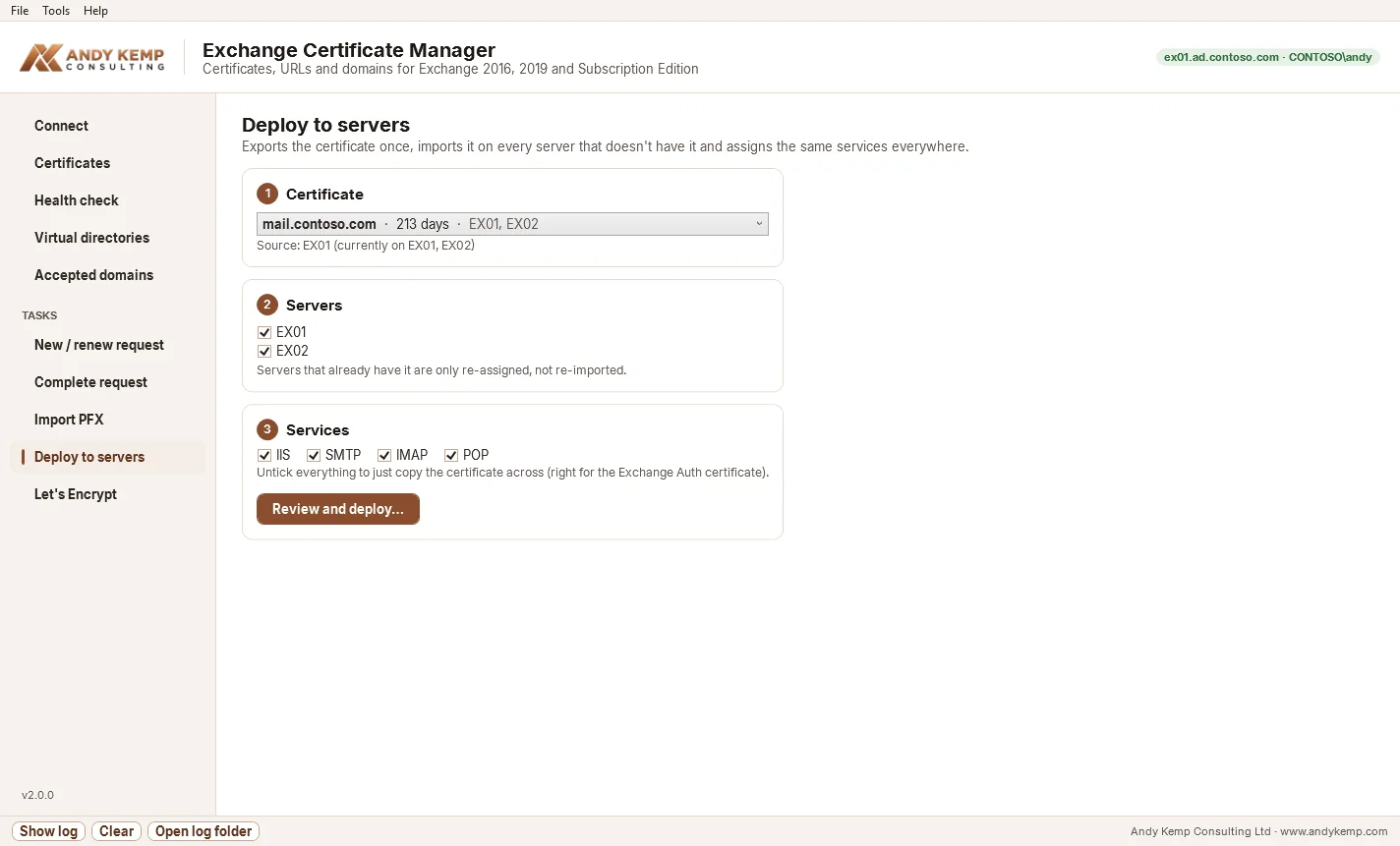
When you need a new one, Suggest from Exchange URLs fills the names in from your configuration, so the request covers what Exchange actually uses. Complete it with your CA’s response or import a PFX you already have, then deploy it to every server with the same services in one step.
For a lab or dev, why not Let’s Encrypt?
For a lab, a dev environment or a test build, buying a certificate is overkill. A self-signed one means warnings everywhere and clients that won’t connect.
So the app does Let’s Encrypt too.
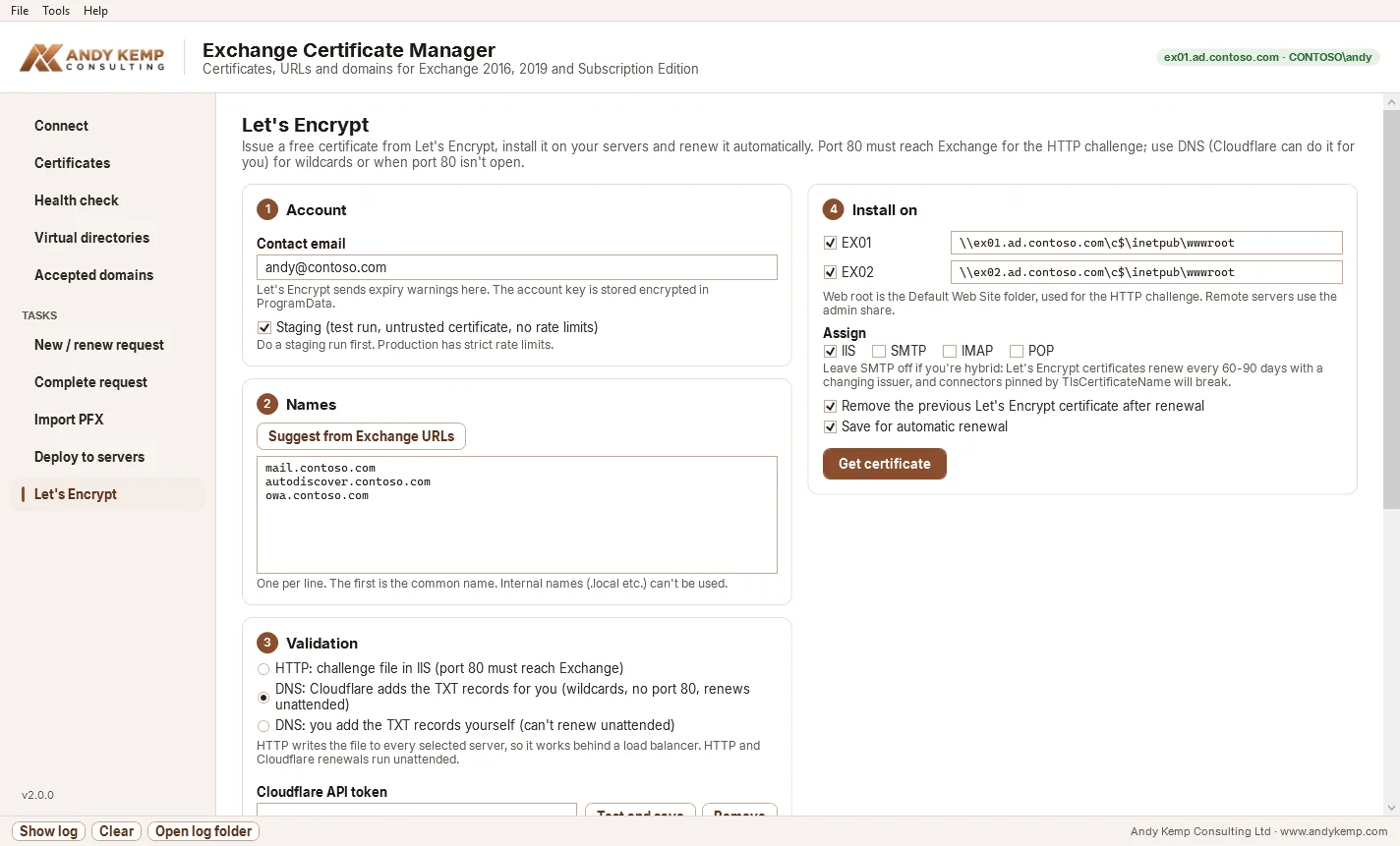
- HTTP validation writes the challenge file to every server’s IIS, so it works behind a load balancer.
- DNS validation through Cloudflare works for wildcards and for servers that aren’t reachable on port 80. The API token is stored encrypted, readable by administrators only.
- Renewal is automatic. A nightly scheduled task renews anything within 30 days of expiry. It can run as a group managed service account (gMSA), and the app will create the gMSA for you if you don’t have one.
If you’re hybrid, leave SMTP unticked. Let’s Encrypt certificates change every few months, and a send connector pinned to a certificate will stop matching.
Accepted domains, in the right order
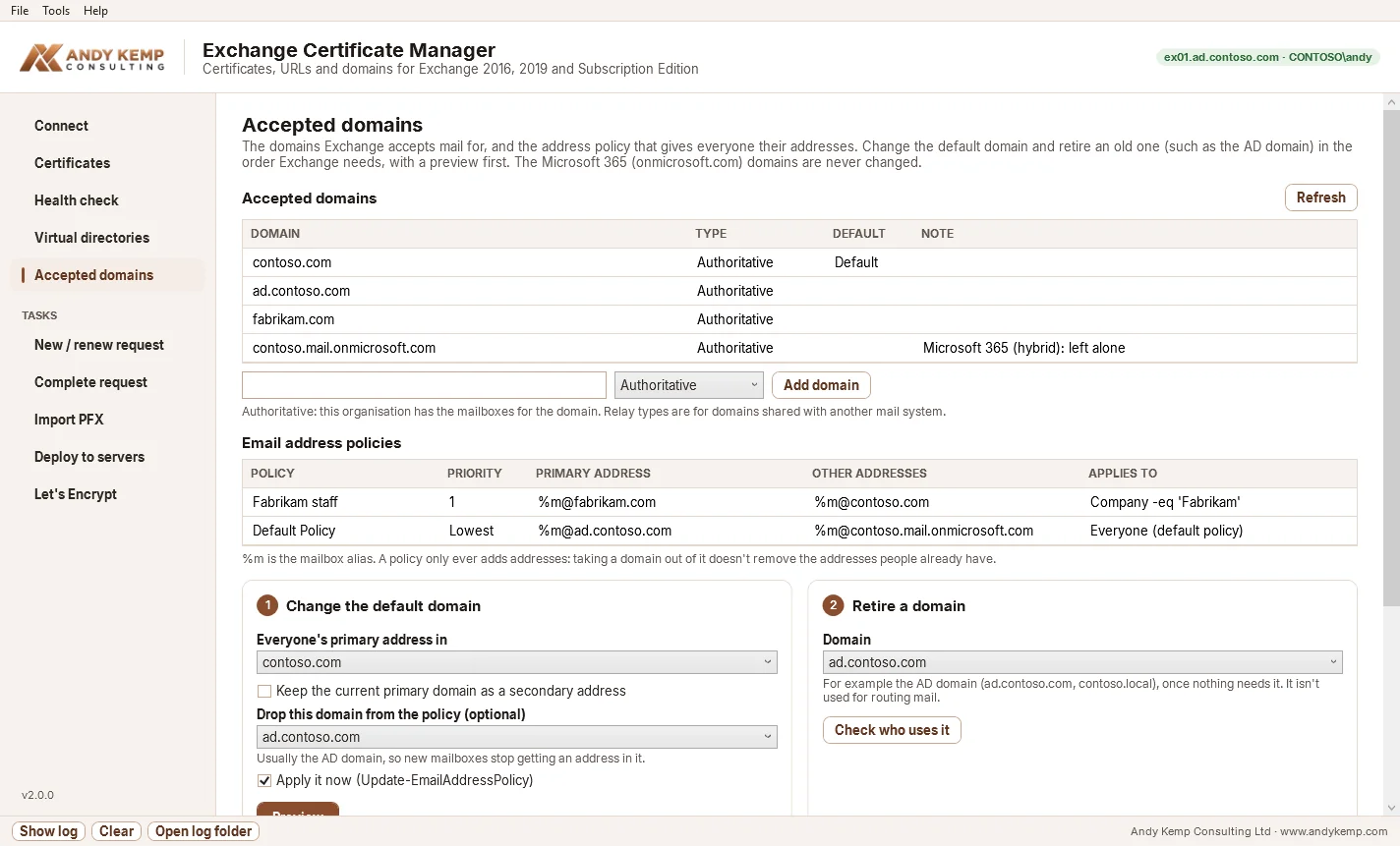
The Accepted domains page shows every domain and email address policy. Changing the default domain is one previewed plan: make the new domain the default, update the default policy, and apply it, in that order.
Retiring the old AD domain works the same way. It checks what still uses the domain first: policies, primary and secondary addresses (including the system mailboxes) and connectors. It can remove the leftover addresses, and only then removes the domain.
The AD domain isn’t used for routing mail. In the days of .local domains I always removed it, and now you can do it without the guesswork. The Microsoft 365 onmicrosoft.com domains are never touched.
Health check
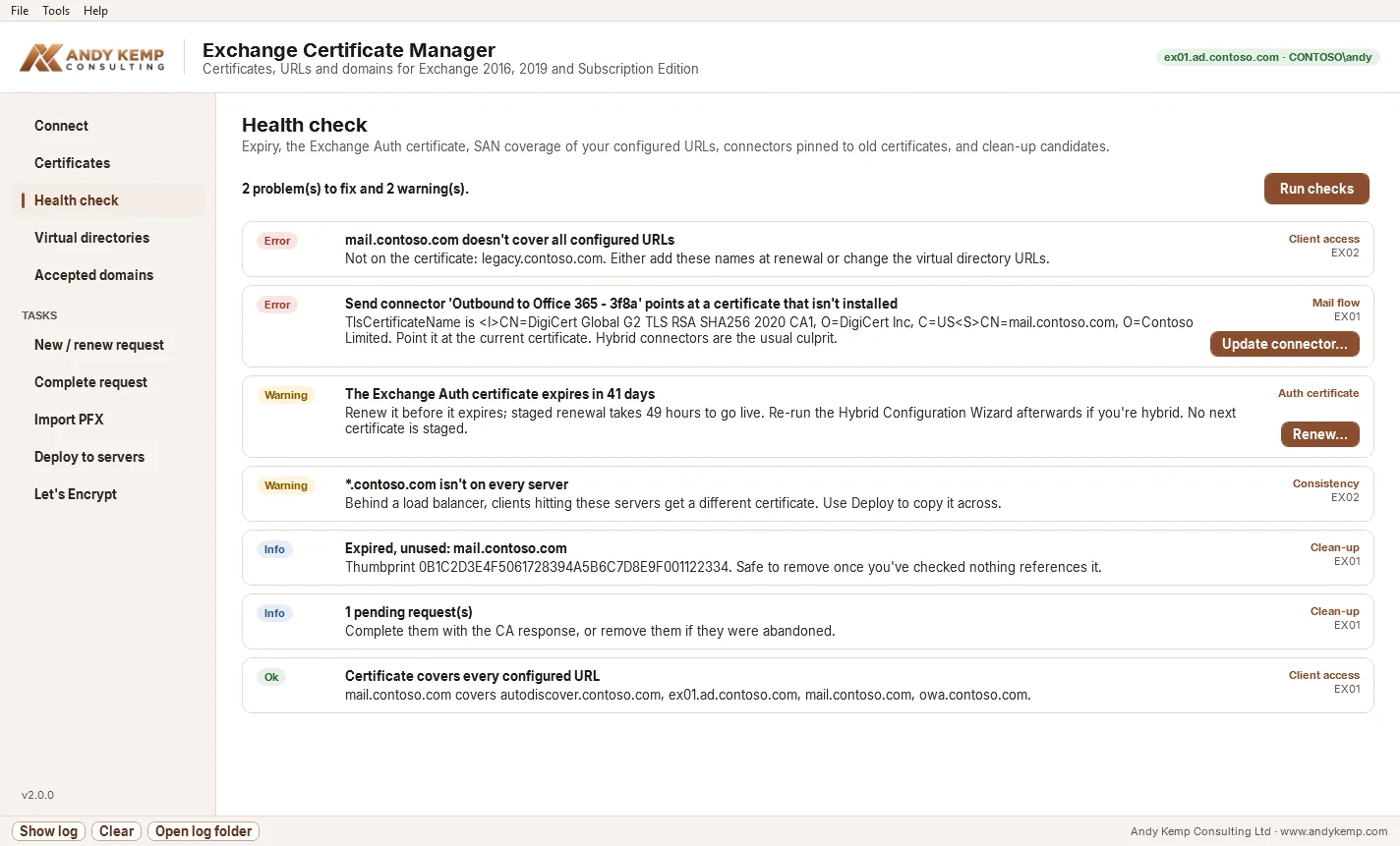
Finally, the health check looks for the things that usually break: certificates about to expire, the Exchange Auth (OAuth) certificate, URLs the certificate doesn’t cover, connectors pinned to a certificate that’s gone, and old certificates to clean up. The Auth certificate and connectors have one-click fixes.
Getting it
It’s free. Get the installer from the Exchange Certificate Manager page and install it on an Exchange server or an admin workstation, or deploy it silently with Intune. It keeps itself up to date, and every download is checked against its published SHA-256.
- Tour the screens in your browser
- Read the docs, including a quick start
- Get it: the download, docs and demo in one place
One IP, several Exchange environments
One last thing.
My lab has more than one Exchange environment, a production-style one and a dev one, behind a single public IP. Let’s Encrypt over HTTP needs each of them reachable on port 80, and clients need 443.
That’s not a problem with a reverse proxy like HAProxy or nginx: it routes each hostname to the right server.
If you haven’t set one up before, don’t worry. I’ve built a tool for that too: it deploys and configures HAProxy, and gives you a web interface to manage it.
That’s the next post.



Comments
No comments yet — be the first to leave one below.
Published — it will appear for everyone in a couple of minutes once the site updates.